 Billboard
Show the weather on your screens
Add live local weather to your galleries, as a small chip beside the clock or a full-screen slide, from one location you set once.
Last updated 28 November 2026
Billboard can show live local weather on your screens. It comes in two forms: a small chip that sits beside the clock, and a full-screen weather card that takes its own turn in the rotation. Both read from one location you set on your account.
Set your location first
Weather is off until you tell Billboard where you are.
- Choose Apps in the sidebar and select Set up on the Weather card. (The same Weather settings open from Settings → Apps.)
- Under Location, select Pick a town or city, then search for your city, suburb or town.
- Pick the right match from the list. You can also use Use my current location in a browser that allows it.
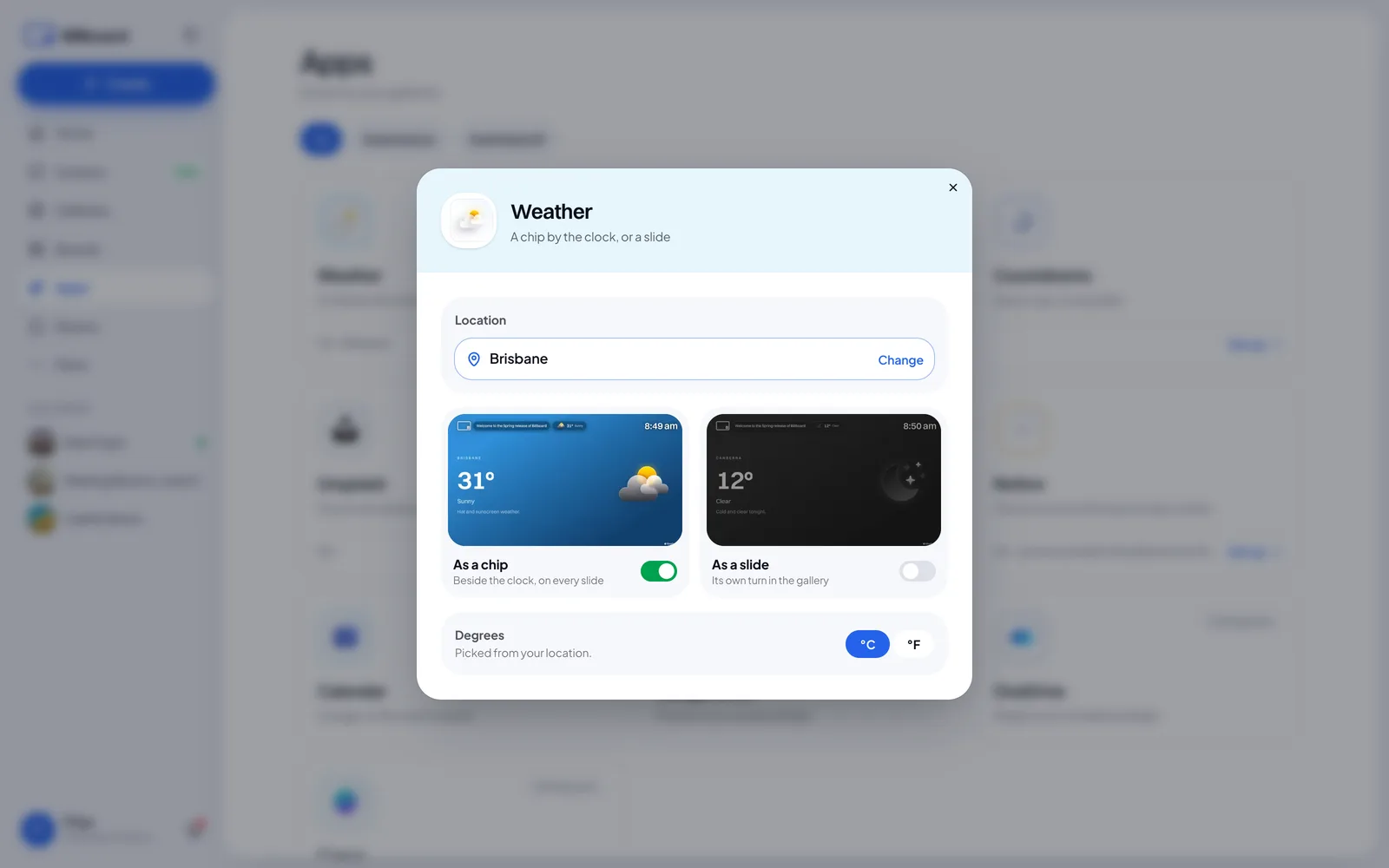
This is a single location for your whole account. Every screen shares it, so you set it once, not per gallery.
The chip: weather beside the clock
The chip is a small pill with the temperature and conditions, sitting in the top-right next to the clock.
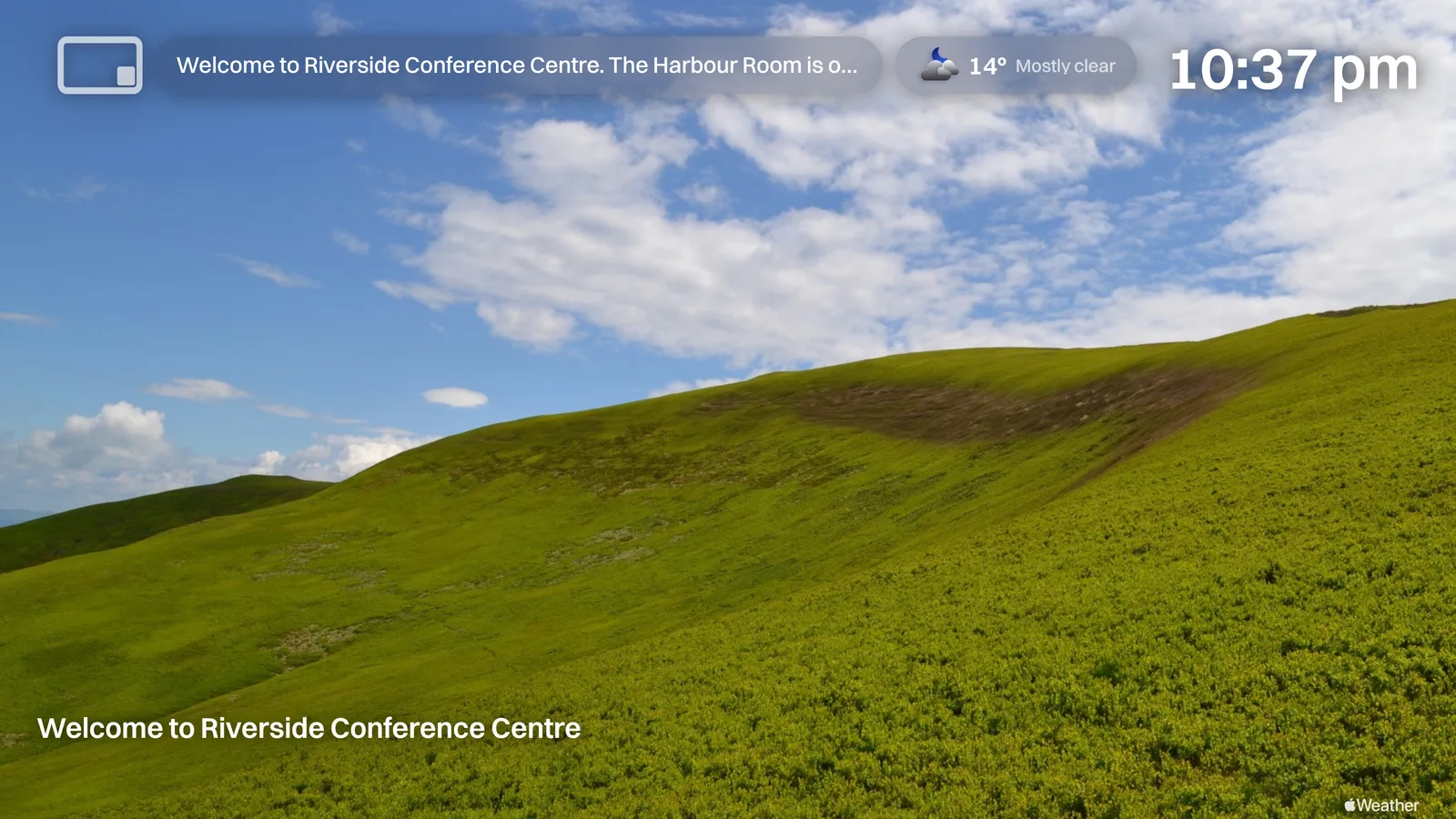
In the Weather settings, turn on As a chip. That's it.
The chip is account-wide, so it appears on every screen you run. It's one switch rather than a decision per gallery.
The card: a full weather slide
The card is a full-screen slide with the temperature, the conditions, and a short line of practical advice, like "Dry but cold. Take a jacket."
The conditions and the advice show in the screen's language, so a screen set to French reads them in French. See Screen languages.
First turn on As a slide in the Weather settings. That's what makes the card available to galleries.
- Open a gallery and choose Add content.
- Choose Add weather card. It's added to the end of the gallery.
It lands in the running order like any other item and takes its own turn between your photos. You can drag it to reorder it, or remove it, just like a photo.
The Apple Weather credit
Whenever weather is on screen you'll see a small Apple Weather mark in the bottom-right corner, and the side menu on the Apple TV lists the other data sources behind the forecast. Apple's licence requires both, so they aren't something you can switch off while weather is showing.
Good to know
- One location, every screen. Weather is account-wide, not per gallery. If you run screens in different cities, they'll all show the location you set.
- The advice line is genuine local guidance. It looks a short way ahead, so it tells you whether it will rain, not just whether it's raining now.
- Nothing to maintain. Billboard fetches the weather for you and keeps it fresh. You never touch it after setup.