 Billboard
Portrait and screen orientation
Frame a gallery for a screen mounted sideways or upside down, and reframe your photos to suit the new shape.
Last updated 28 November 2026
Not every screen hangs the normal way. If yours is mounted on its side for a tall, vertical display, or turned some other way, you can tell the gallery, and Billboard frames everything to match.
Set the orientation
- Open the gallery and select the gear button to open Gallery settings.
- Under Playback, find Screen orientation and choose the option that matches how the screen is mounted: Landscape, Portrait, Portrait, flipped or Landscape, flipped.
- Select Save.
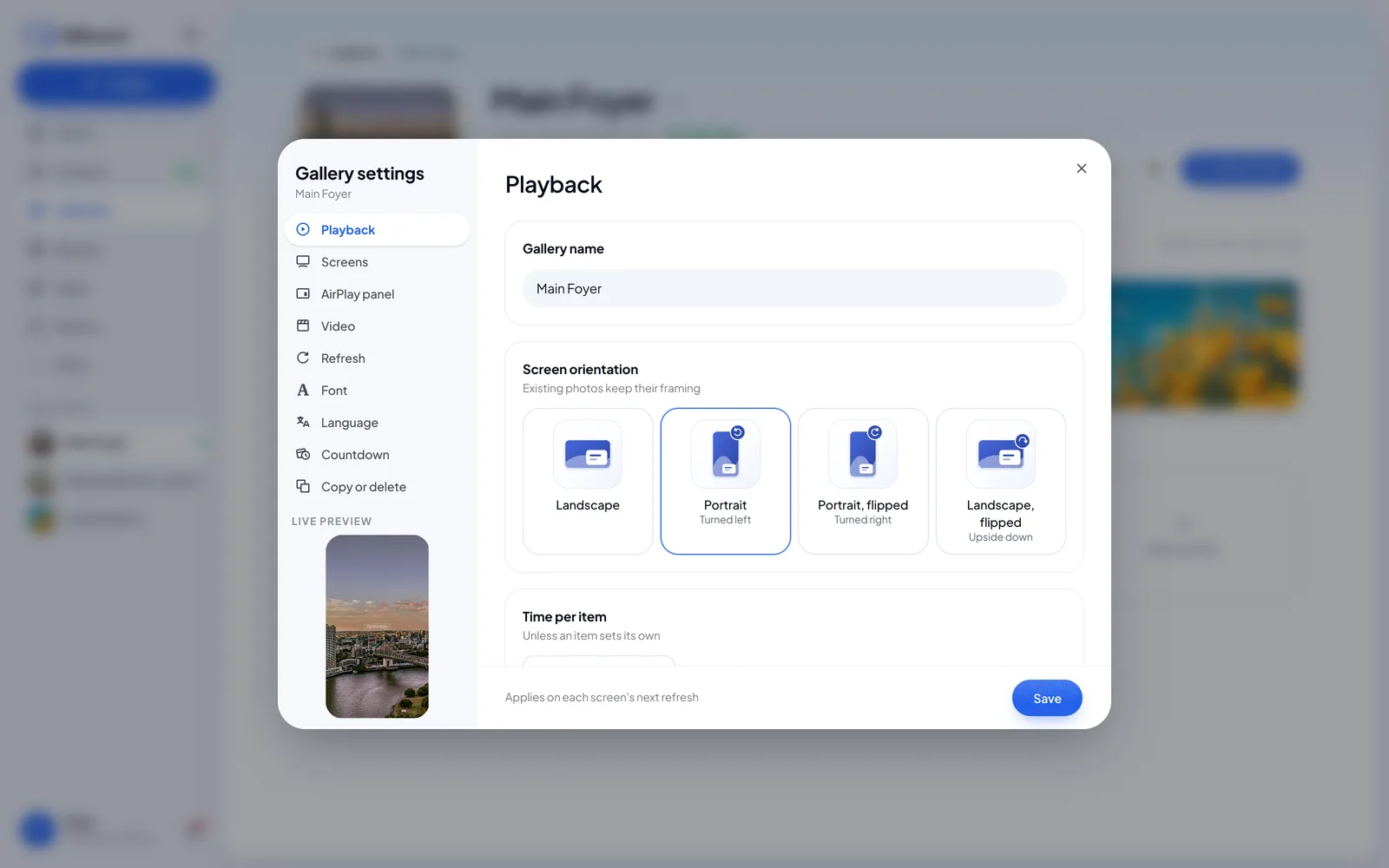
From then on, the gallery frames its content for that shape. New uploads are cut to the new orientation automatically.
Reframe your photos
Changing the orientation doesn't re-cut photos you've already added. They keep their existing framing until you reframe them, so nothing shifts unexpectedly.
To reframe a photo for the new shape:
- Tap the photo's card to open its panel, and choose Adjust crop.
- Reposition and zoom so the important part sits inside the tall (or rotated) frame.
- Choose Apply crop, then Save.
As long as Keep original photos is on, the original is kept, so you can reframe as many times as you like without losing quality. See Editing and cropping photos.
Good to know
- One orientation per gallery. A gallery is either wide or tall, not a mix. If you run screens both ways, make a gallery for each.
- Existing photos hold their framing. They won't jump to a new crop on their own. Reframe the ones that matter when you're ready.
- Mount the screen however the room wants. A tall screen in a narrow hallway, a wide one in a foyer. The gallery adapts to the mount, not the other way around.