 Billboard
Broadcast a notice to every screen
Show one message across the top of every screen at once, closures, events or reminders, and switch it off in a click.
Last updated 28 November 2026
A notice is one message shown across the top-centre of every screen on your account, over whatever each gallery happens to be playing. It's account-wide, not per gallery. Set it once and it shows up everywhere.
When to use a notice
Reach for a notice when something applies to the whole space at once:
- Open evenings and events.
- Closures and room changes.
- Emergency messages.
- Reminders.
Set a notice
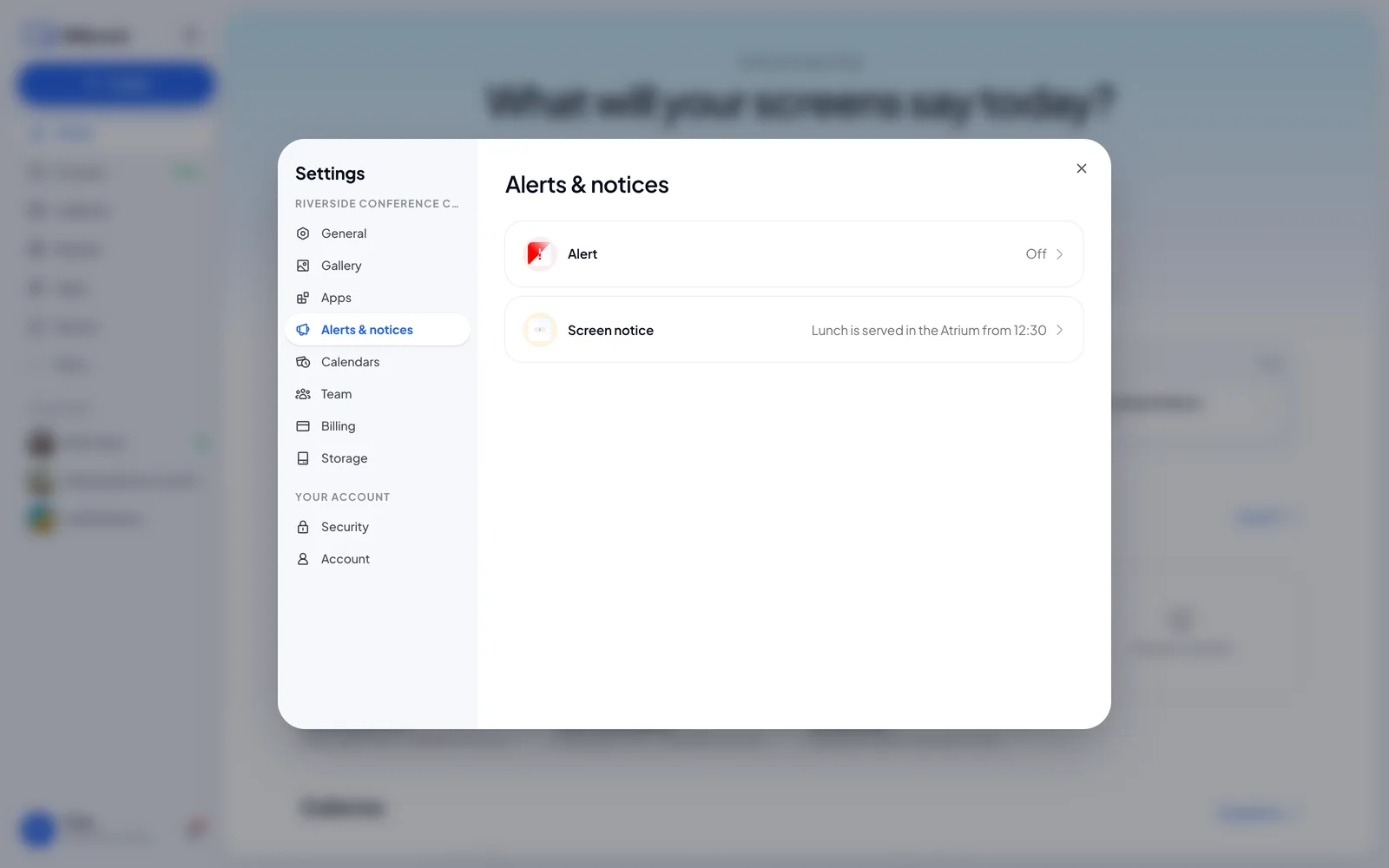
- Choose Apps in the sidebar and select Set up on the Notice card. (It's also in Settings → Alerts & notices, as Screen notice.)
- Type your notice. It holds up to 140 characters.
- Turn Show on screens on, then Save.
It shows up as a pill at the top of every screen you run.
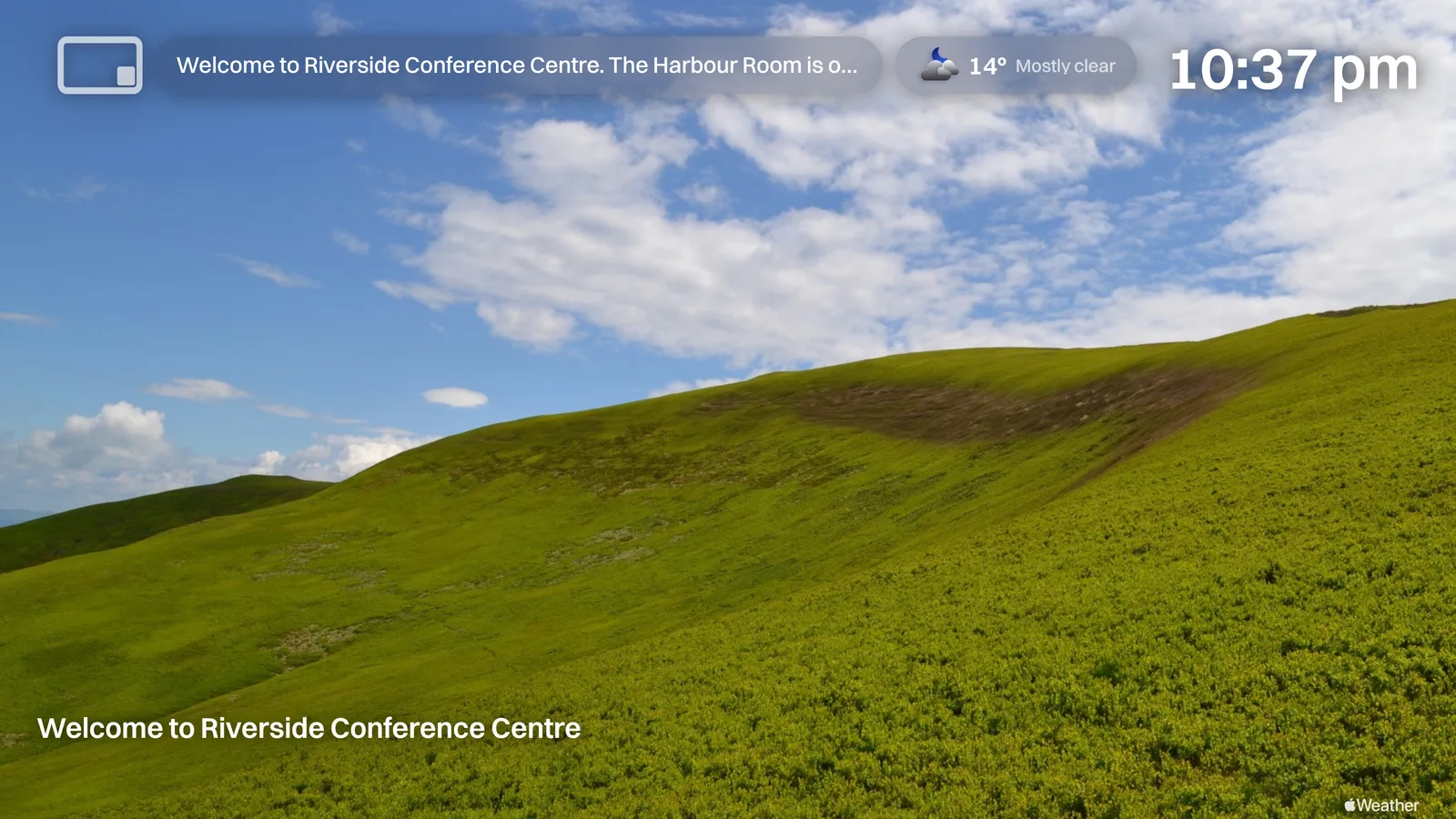
Tip: short still reads best. A notice that fits one or two lines sits still at the top of the screen, which is easiest to take in at a glance. Write a longer one and it scrolls across instead, so nothing gets cut off, but a message that holds still beats one that moves if you can say it briefly.
Turn it off
Open the notice again, turn Show on screens off and Save. It comes off every screen at once. Nothing to change per gallery.
When changes appear
Same as any other change: a notice lands on each screen on its next refresh, not the instant you save. See Managing galleries for how refresh intervals work.
A notice is a separate thing from each gallery's own AirPlay panel and display settings. Still stuck? Email support@getbillboard.app.