 Billboard
A photo or video isn't showing
Why a photo or video might not appear on screen, look soft, or refuse to play, and how to fix each one.
Last updated 28 November 2026
Added something and it's not on screen? Run through these. Most of the time it's a quick fix.
It hasn't appeared yet
Changes land on each screen's next refresh, not the instant you save. Give it until the gallery's refresh interval, or force an update right away on the Apple TV with Reload. See The Billboard app on Apple TV. If a few screens are all behind, they're probably offline. See Staying live when the internet drops.
The item is scheduled
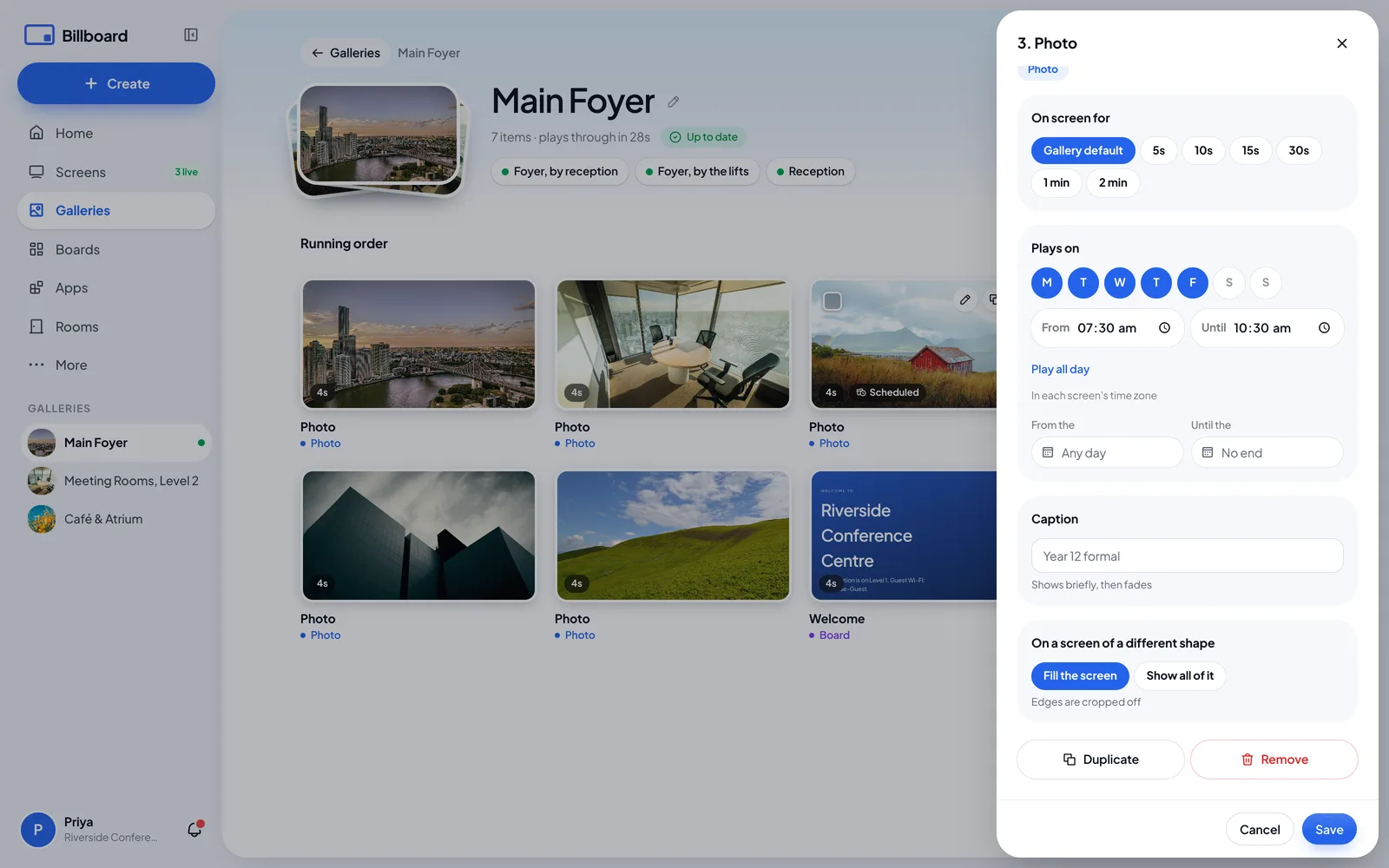
A photo with days, times or dates set under Plays on only appears inside that window, and stays hidden outside it. Tap the item's card to open its panel and check Plays on. Scheduled items carry a Scheduled badge on their card in the running order. See Editing and cropping photos.
A photo looks soft or blurry
Billboard warns you at upload when a photo, or a crop of it, comes in below Full HD, because it can look soft on a big screen. Upload at 1920×1080 or higher. And if you cropped in tight, re-crop and keep more of the frame. See Supported files, sizes and limits.
A video won't play
- Stick to H.264 or HEVC (H.265) in an MP4 or MOV. Those are what Apple TV plays natively. Anything in an odd codec, re-export it.
- Check the file is under the 2 GB limit and actually finished uploading. Its progress row shows a tick when it has.
- Big or high-bitrate videos can be slow the first time they play. Give it a moment on the screen's next refresh.
The upload failed
- Saw a storage full message? Free up space or upgrade. See Storage and original photos.
- Check the file is a supported type (JPG, PNG, WEBP, HEIC, or video). See Supported files, sizes and limits.
- If one file errors, pull it out and try again. The rest of the batch still uploads.
Still stuck? Email support@getbillboard.app with the gallery name and the file, and we'll take a look.