 Billboard
Editing and cropping photos
Every photo is framed for your screens. Re-crop from the original, add a caption, and set how long a photo shows or when it appears.
Last updated 28 November 2026
Every photo you upload gets framed to your gallery's shape automatically, 16:9 for a normal gallery and 9:16 for a portrait one. What's in the frame is exactly what the TV shows. You can go back and change that framing as long as Keep original photos is on, and each photo carries its own timing and schedule. It all lives in the photo's own panel.
Open a photo's panel
Open a gallery and tap the photo's card in the Running order. A panel slides in from the right, titled with the photo's place in the order, like "2. Photo". In it:
- The photo as the TV shows it, with Adjust crop under it.
- On screen for: how long it stays up.
- Plays on: which days and times it plays, and the dates it runs between.
- Caption.
- On a screen of a different shape: Fill the screen or Show all of it.
- Duplicate and Remove.
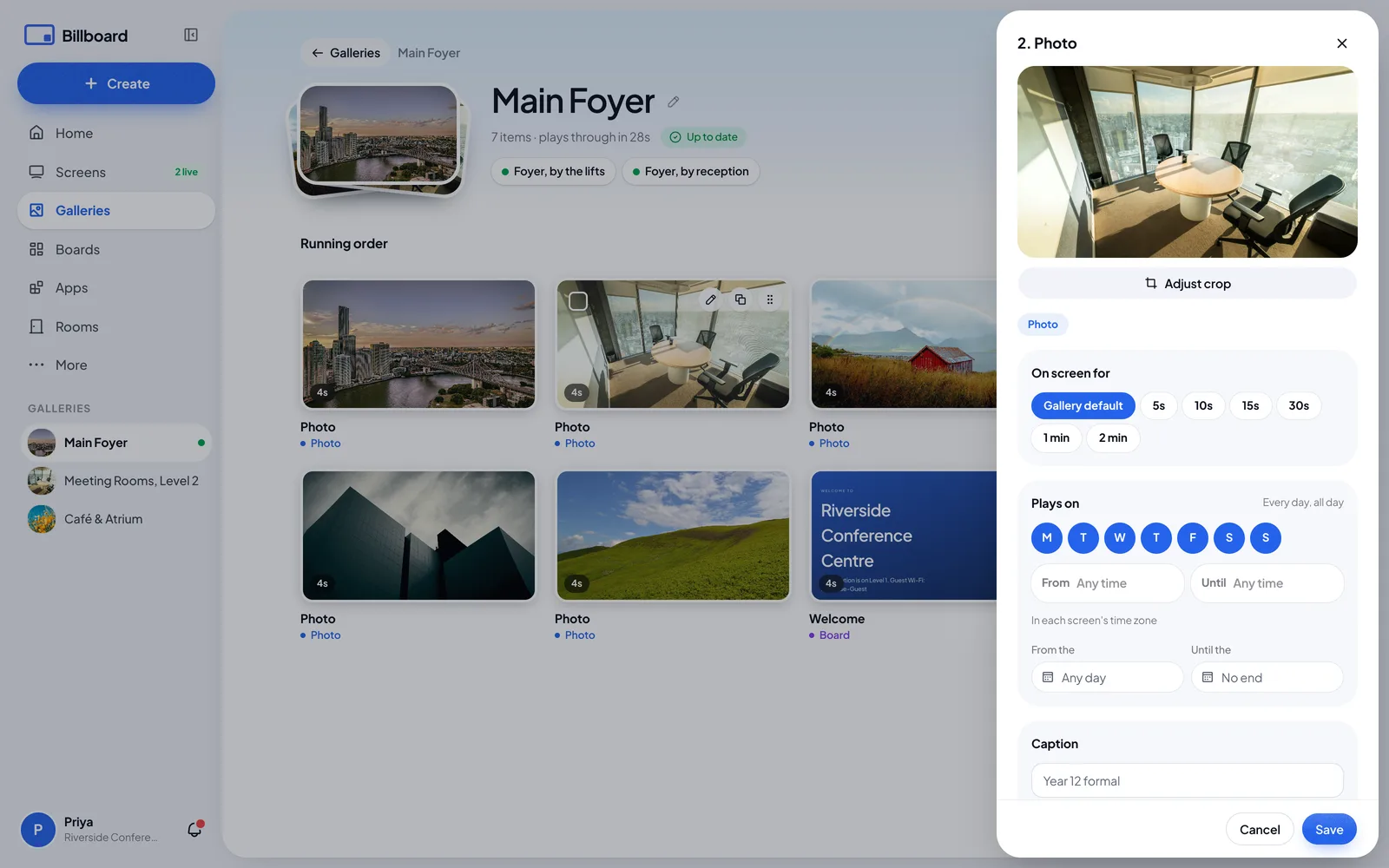
Select Save at the bottom when you're done, or Cancel to leave it as it was.
Re-crop to fit the screen
If Billboard still holds the photo's original, Adjust crop appears under the picture and you can reframe it. If it doesn't, the panel says so and re-uploading is how you change the framing. See Keep original photos below.
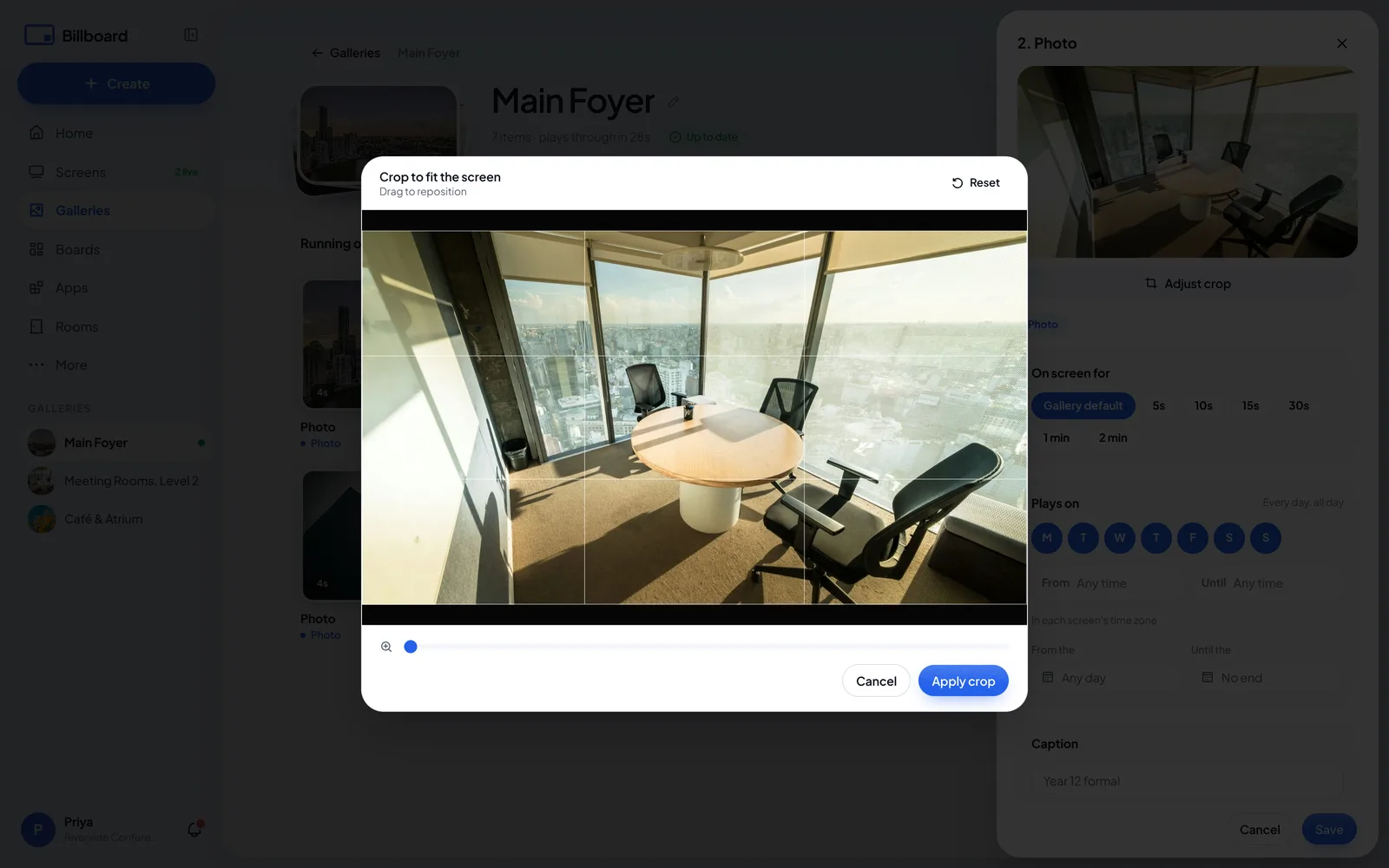
- Drag the photo to reposition it inside the frame.
- Zoom with the slider to fill the frame or pull more of the shot in.
- The frame is exactly what appears on the TV, in whatever shape this gallery's screens are.
- Reset returns to the original framing.
Select Apply crop when it looks right, then Save. The new framing reaches your screens on their next refresh.
Non-destructive by default: re-cropping works from the photo's stored original, so you can reframe the same photo as many times as you like with no loss, as long as Keep original photos is on. See Storage and original photos.
If you can't re-crop a photo
With Keep original photos off, applying a crop is final. Billboard drops the original to save space, so there's no undo. It'll ask you to confirm first. To reframe a photo like that later, you'll have to upload it again. Want every photo to stay re-croppable? Turn on Keep original photos under Settings → Gallery.
If a crop ends up smaller than Full HD, meaning 1920×1080 across or 1080×1920 tall, you'll get a warning. It may look soft on a large screen.
How long a photo shows
Under On screen for, pick how long this photo stays up: 5 seconds up to 2 minutes. Leave it on Gallery default and it uses the gallery's own Time per item. See Customise the display.
Caption
Type a line into Caption and it appears on screen for a few seconds as that photo comes up, then fades. Leave it empty for none. See Add a caption to a photo.
Schedule a photo
Plays on decides when a photo is shown:
- Days. Tap a day to leave it out. All seven are on to start with.
- From and Until. A window of time each day, in each screen's own time zone.
- From the and Until the. The dates it runs between, so a dated event poster turns up and drops off on its own.
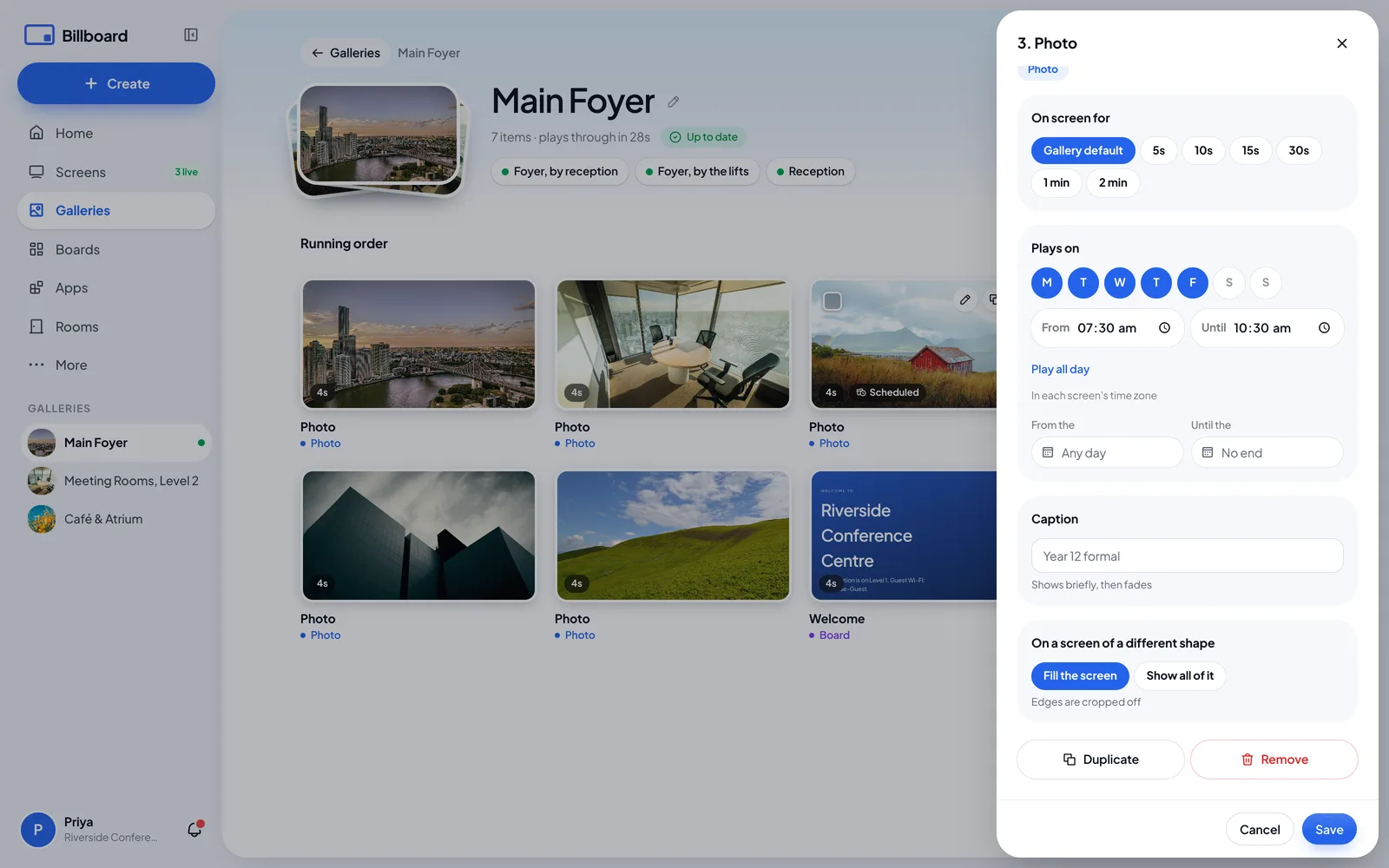
Outside its window the photo just doesn't show, and a Scheduled badge marks its card in the running order.
Editing a video
Videos don't get cropped, they play as uploaded. The same panel still sets a video's time on screen, its schedule and how it fills the screen.
Need a hand? Email support@getbillboard.app.