 Billboard
Plans, billing & screen limits
How plans and screen limits work, upgrading or downgrading, monthly vs annual billing, and managing your subscription.
Billboard is priced by the number of screens you run. Not per feature, and no per-screen surprise on the bill. You pick a plan, and that plan sets how many Apple TVs can be live at once across your whole account.
How plans work
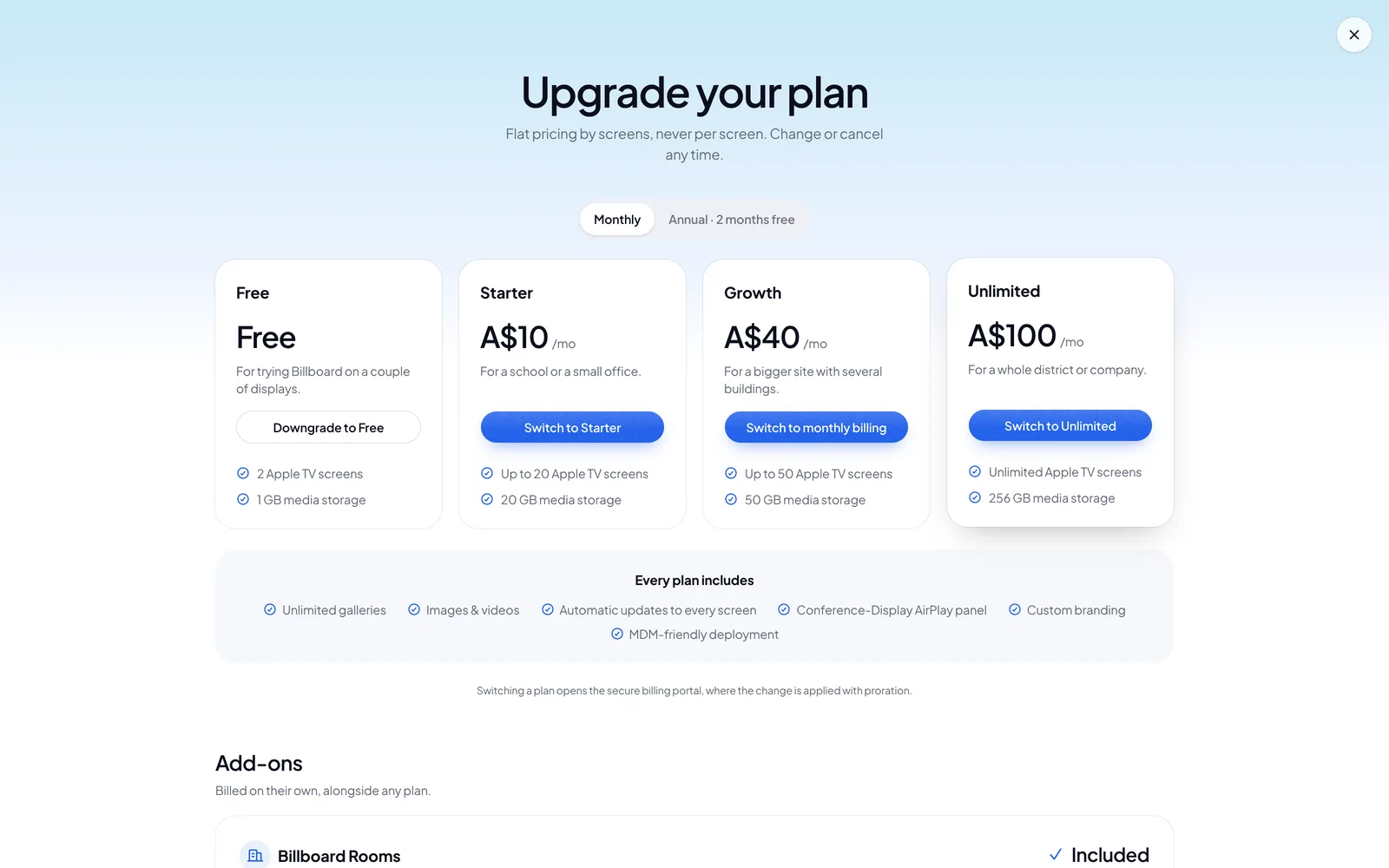
Each plan includes a fixed number of screens and an amount of storage. Nearly everything works on every plan, Free included. A few features that connect to other services need a paid plan, and the dashboard tells you where that applies.
| Plan | Screens |
|---|---|
| Free | 2 |
| Starter | 20 |
| Growth | 50 |
| Unlimited | Unlimited |
See the pricing page for current monthly and annual prices. Annual billing works out cheaper than paying monthly across the year.
What counts as a screen
A screen is any Apple TV that has checked in with Billboard in the last 10 minutes. Screens are counted across your whole account, not per gallery, so connecting five Apple TVs to the same gallery counts as five screens.
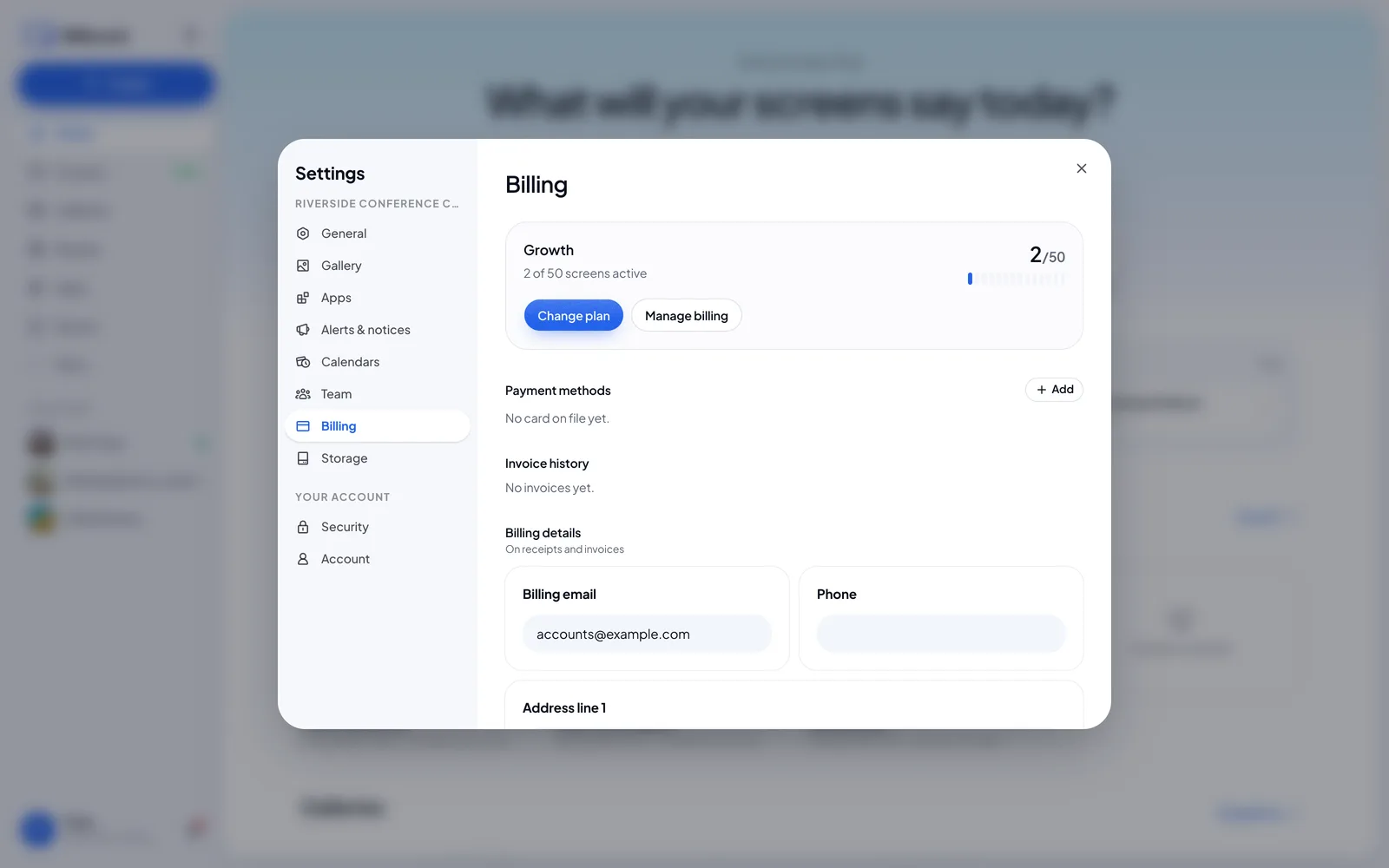
Your current usage is shown in Settings → Billing and at the top of the Screens page, so you can always see how many screens are live against your limit.
What happens if you go over your limit
Going over is handled gently, and it's automatic. If more Apple TVs connect than your plan allows:
- The screens that connected earliest keep playing your content, exactly as normal.
- Any extra screens show a full-screen "screen limit reached" message instead of your gallery, prompting an upgrade.
Nothing breaks and nothing is lost. The moment you upgrade, or a screen drops off and frees a slot, the waiting screens pick up your content on their next check-in. You never have to touch the Apple TV.
Upgrading or downgrading
- Choose More → Plan & billing in the sidebar, or go to Settings → Billing and select Upgrade plan (or Change plan, once you're subscribed).
- Pick monthly or annual, then select the button on the plan you want.
- You'll be taken to secure checkout to confirm. Upgrades take effect immediately, so more screens can come online straight away.
Downgrades take effect at the end of your current billing period. If your live screen count is above the new plan's limit when it starts, the extra screens simply show the upgrade message until you're back within the limit.
Monthly vs annual
You can pay monthly or annually. Annual billing is charged once a year and costs less than twelve monthly payments, so it's the better value if you know you'll run Billboard long term. You can switch between them from Plan & billing or the customer portal.
Managing your subscription
Select Manage billing in Settings → Billing to open the secure customer portal, where you can:
- Update your card or payment method.
- Switch between monthly and annual.
- Download invoices and receipts.
- Cancel your subscription.
If you cancel, Billboard keeps working until the end of the period you've paid for, then your account returns to the Free plan (two screens).
Payment and security
Payments are handled by our payment processor. Your full card number is entered directly with them and is never stored by Billboard. For more on how we handle data, see the Privacy Policy.
Common questions
- Do I need a card to start? No. The Free plan runs two screens with no card required.
- Can I run different galleries on different screens? Yes, on any plan. Your limit is the total number of live screens, regardless of how many galleries you have.
- I upgraded but a screen still shows the limit message. Screens update on their next check-in (within a few minutes). If it persists, see Troubleshooting.