 Billboard
See a room in your own calendar
A subscribe link puts a room's bookings, or every room's, into Google Calendar, Apple Calendar or Outlook. No sign-in, no Google connection needed.
Last updated 28 November 2026
A subscribe link is a web address that a calendar app follows. Paste it in once and the room's bookings show up beside your own events, and keep updating on their own.
It is one way. You see bookings in your calendar app, but you book, move and cancel in Billboard or at the panel. For bookings to flow both ways, connect Google Calendar instead. See Connect a room to a calendar.
Get a link for one room
- Go to Rooms and open the room.
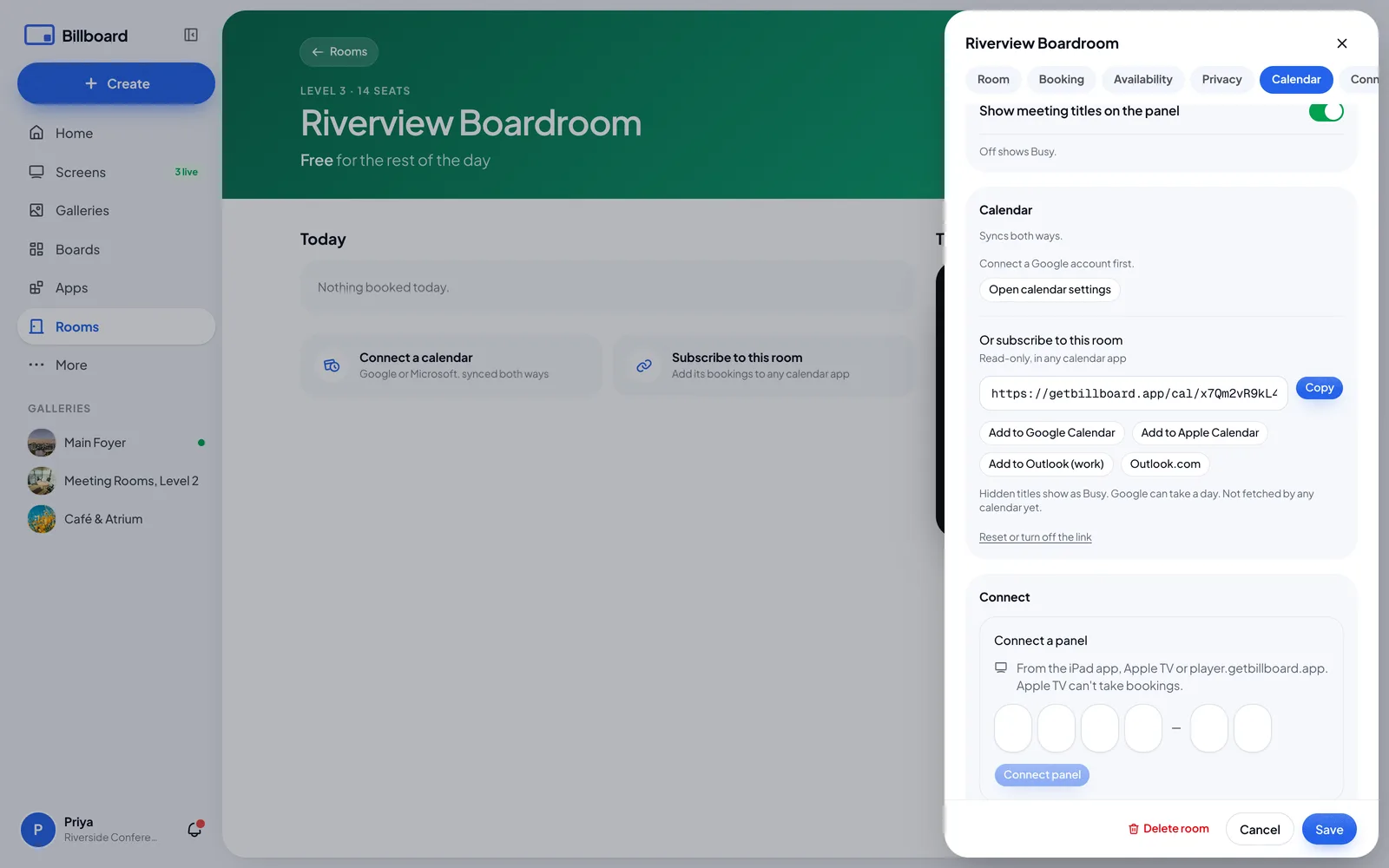
- Select Subscribe to this room. It opens Room settings on Calendar.
- Further down that section, choose Create subscribe link.
- Pick your calendar app:
- Add to Google Calendar opens Google with the link filled in. Confirm, and the room appears under Other calendars.
- Add to Apple Calendar opens the Calendar app on a Mac, iPhone or iPad. Choose Subscribe.
- Add to Outlook (work) is for Microsoft 365 accounts. Outlook.com is for personal ones.
- Anything else: Copy the link and look for Subscribe to calendar, Add calendar from URL or From internet in your app.
Get a link for every room
In Settings → Calendars, the Subscribe link for all rooms puts every room in one calendar, each booking labelled with its room. This one needs an account admin.
What the link shows
- Every booking in the room from the last 30 days to six months ahead, including bookings taken at the door.
- The booking's title only where the room's panel shows titles. Private bookings, and rooms set to hide titles, show as Busy.
- Never the organiser, their email, or a booking's edit code.
How fresh it is
Apple Calendar and Outlook check every few minutes to a few hours. Google Calendar checks on its own schedule, which can be up to a day. That is a Google limit every subscribe link has. If you need a booking to appear instantly, look at the panel or the Bookings tab in Rooms.
If the link ends up in the wrong place
Anyone with the link can see what it shows. In the same place you made it, choose Reset or turn off the link:
- Make a new link replaces it. The old one stops working within a few minutes, so anyone using it needs the new one.
- Turn it off removes it completely.
Show bookings on a screen instead
A subscribe link puts bookings in someone's own calendar. To put them on a TV in the foyer, use a What's on board with Room bookings as its calendar. It shows the day's or the week's bookings for one room or every room, each with its room beside it, and a private booking just says Booked. See Show a calendar on screen with What's on.