 Billboard
Design a board
Build a menu, a timetable or a set of notices in the browser and drop it into any gallery. Edit it once and every screen showing it catches up.
Last updated 28 November 2026
A board is a screen you design in the dashboard rather than upload: a canteen menu, a room timetable, a welcome message, a set of reminders. You build it in the browser, drop it into any gallery, and it plays in the rotation like a photo.
Boards live in one library. Put the same board in five galleries, edit it once, and every screen showing it catches up on its next refresh.
Turn the Boards app on
- Choose Apps in the sidebar.
- On the Boards card, turn the switch on.
The same switch is in Settings → Apps.
Switching it off later hides the library and stops placed boards drawing on screens. Nothing is deleted, so turning it back on puts every board back where it was.
Build your first board
- Choose Boards in the sidebar, then New board. Create → New board gets you to the same place.
- Under What kind of board?, pick the one closest to what you want: Menu, Timetable, Notices, Welcome, Countdown, Listing, What's on, Quotes or Reviews. Each one is drawn as a little picture of the board it makes. The editor opens with that kind already set up.
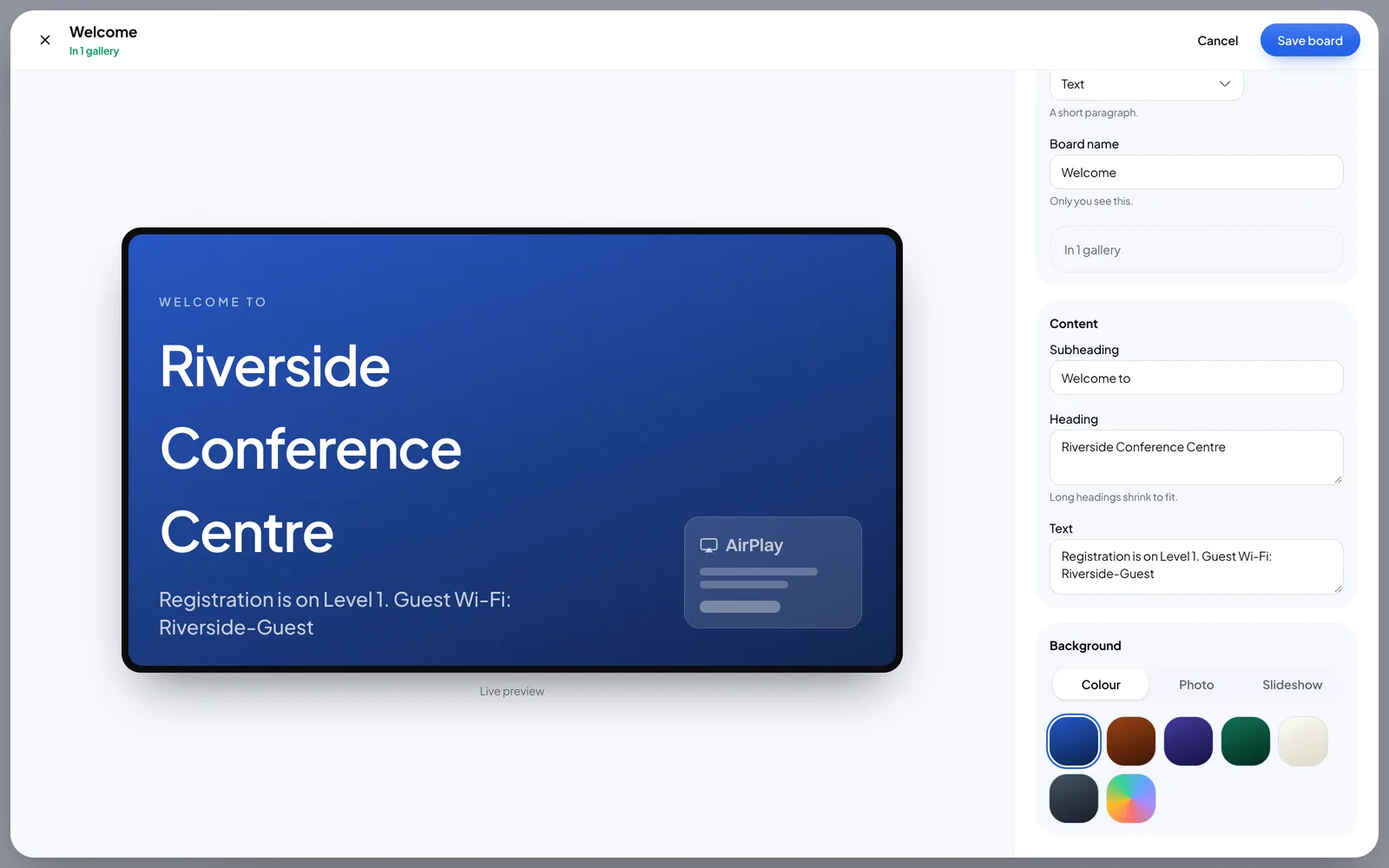
- Fill in the sections down the side of the editor: Details, Content and Background. The board on the left is a live preview and changes as you type.
- Choose Add board.
Details
The heading is the big line, and there's room for a sentence under it. A school might use "St Aidan's Primary" and "Welcome to our school." A meeting room might use the room's name.
Content
Pick the shape that suits what you're showing. The four everyday ones:
- Text. A sentence or two under the heading. Good for a welcome, a message, or an announcement.
- Menu. Items and prices, with leader dots running between them. Built for canteens and cafes.
- Times. A run of times with what's on and where. Built for timetables, agendas and run sheets.
- Chips. Short reminders as pills. Good for "Hats on", "Library closed Friday", "Buses leave 3.15".
Chips are laid out as two columns of two, so four is the maximum. A fifth is dropped rather than drawn, because a board that overflows on a wall is worse than one showing four of five things.
Quotes
A Quotes board shows a quote in big type with the person's name under it. Add up to six and they take turns, one per board, each for the board's own time.
For each quote, type the words, the name and, if you like, a role such as "Year 6 parent" or "Head chef". Billboard adds the curly quote marks, so leave yours off. The board's subheading sits above every quote, which suits a line like "What families say".
A quote can run to 280 characters. Longer ones are set in smaller type so the whole thing fits on the screen, and the editor's preview shows you the size it will be. Short quotes still read best from across a room.
Reviews
A Reviews board is the same idea with a star rating on top. Pick one to five stars, type the review, the reviewer's name and where it was posted, such as Google or Tripadvisor. Filled stars show the rating and hollow ones make up the five, so four stars reads as four out of five.
Up to six reviews take turns, in the order you put them. Use the arrows on each one to move it up or down. Copy reviews in as they were written, and only ones you have permission to share.
A board that fills itself
A What's on board has no rows to type. It reads a calendar you already keep, or your room bookings, and shows today's events, this week's or the next few. See Show a calendar on screen with What's on.
Background
Background has a switch across the top with three choices:
- Colour. Pick one of the preset colours, or the rainbow swatch at the end for your own.
- Photo. One picture behind your words. Replace swaps it, Remove takes it off.
- Slideshow. Up to eight photos that take turns behind your words.
Moving between the three doesn't throw anything away, so you can look at a slideshow and come back to a single photo without uploading again. Two things do remove photos: picking a colour, which the editor warns you about under the swatches, and Show one photo in Photo, which keeps the main photo and drops the rest.
You don't choose the text colour. Billboard picks white or black for you based on the background, so the words stay readable whatever you land on. If a colour of your own makes the words hard to read, the editor says so.
Put a board in a gallery
- Open the gallery and choose Add content.
- Choose Add a board, tap one or more boards from your library, then Add.
It joins the running order like any other item. Drag it to reorder it, or remove it, exactly as you would a photo. Removing a board from a gallery leaves it in your library for other galleries to use.
Good to know
- Edit once, everywhere. Boards are shared, not copied. Changing a price on a canteen board updates every screen showing that board.
- It shrinks to fit. Long headings, long quotes and crowded menus are scaled down rather than run off the edge. If you ever see something clipped or overflowing on a wall, that's a bug worth reporting.
- Boards work in portrait. Turn a screen on its side and the layout follows, type included. See Screens turned on their side.
- Your logo sits on boards too. See Put your logo on screen.