 Billboard
Change, upgrade or cancel your plan
Upgrade for more screens, add Billboard Rooms, switch between monthly and annual, update your card, or cancel, all from Plan & billing in your dashboard.
Last updated 28 November 2026
Everything to do with your subscription lives in Settings → Billing. Get there from Plan & billing in the account menu (select your name at the bottom of the sidebar). It shows your current plan, how many screens you're using, and the buttons to change any of it. Adding screens, switching how you pay, updating your card, cancelling. It all happens here.
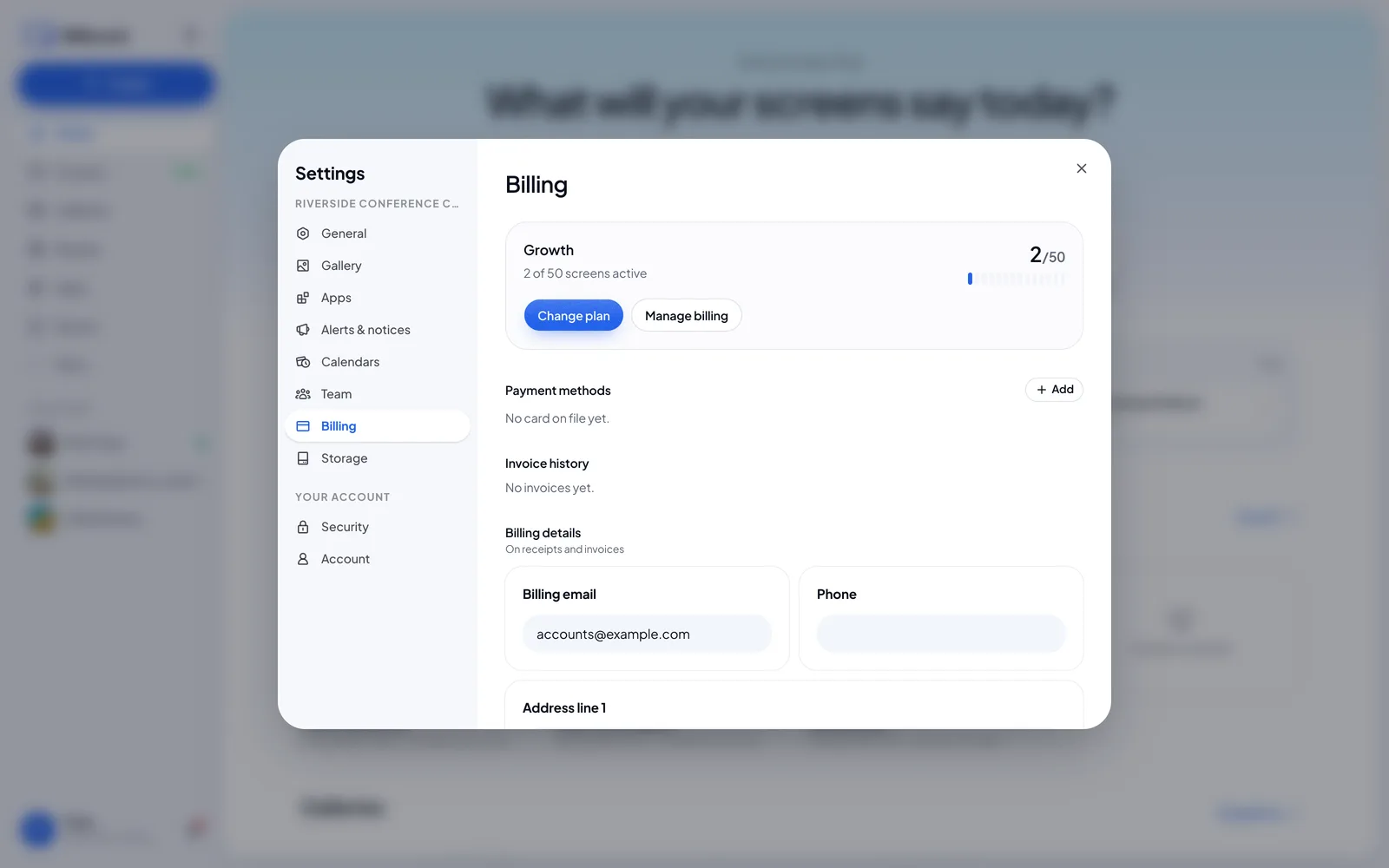
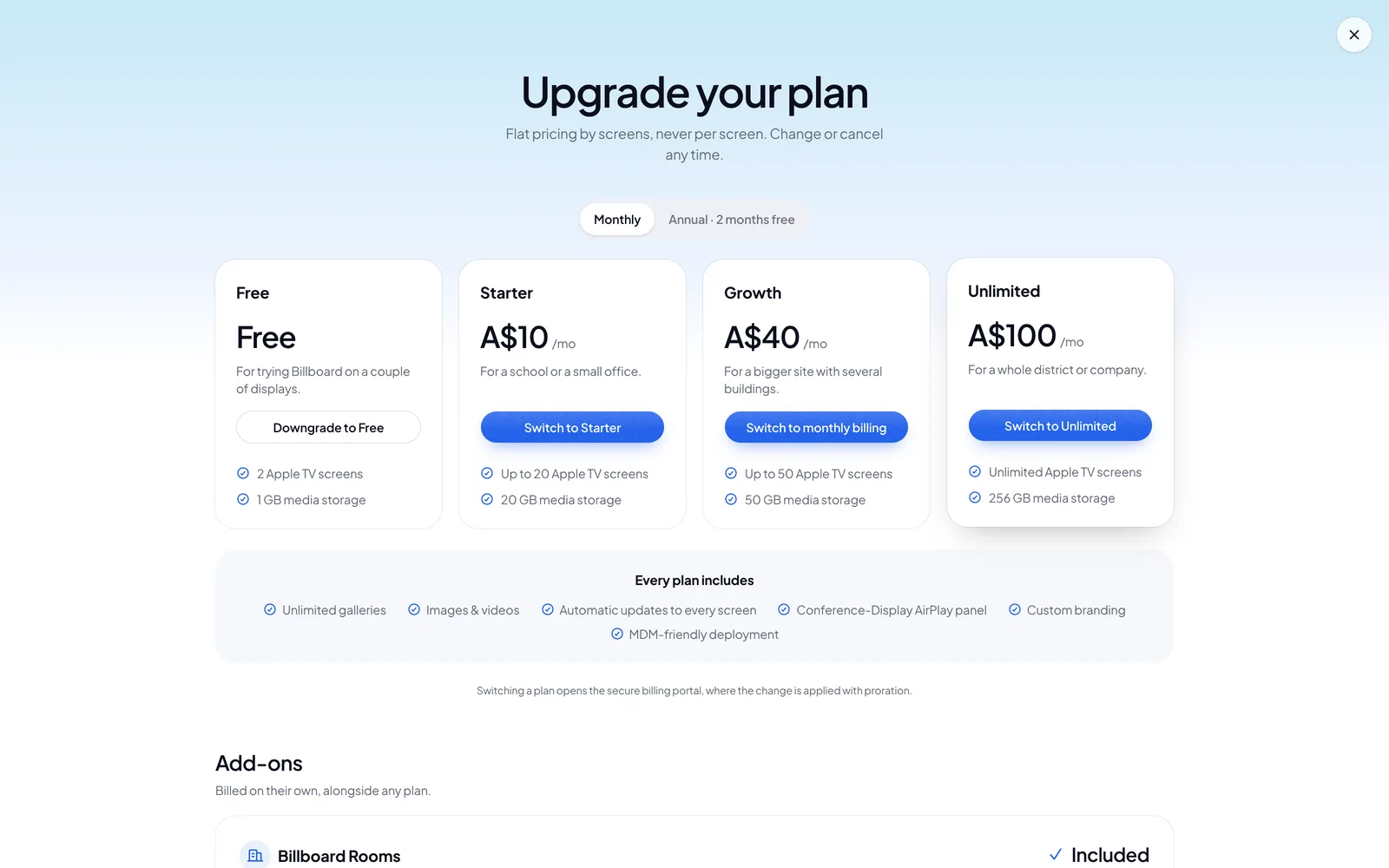
Each plan is one flat price for a set number of screens, never a per-screen charge, and you can pay monthly or annually. Annual works out cheaper across the year. See Plans & billing for the current tiers and prices.
Upgrade to more screens
- Open the plans. Either choose More → Plan & billing in the sidebar, or go to Settings → Billing and select Upgrade plan (it reads Change plan once you're subscribed). The Change plan link in Settings → General opens the same thing.
- Choose Monthly or Annual · 2 months free at the top, then select the button on the plan you want, such as Choose Starter or Switch to Growth.
- You're taken to a secure checkout. Enter your card and confirm. Payments are handled by our payment processor, and Billboard never sees your card details.
Upgrading takes effect immediately, so the extra screens are available straight away. Any screens that were showing the "paused" message start playing again on their next refresh. For more on how screens are counted, see What counts as an active screen.
Your current plan is marked Current plan, and you can Downgrade to Free or switch between monthly and annual billing from the same place. If you're already paying, switching plan opens the secure billing portal, where the change is applied with proration.
Add Billboard Rooms
Billboard Rooms, the booking panels for your meeting rooms, is an add-on rather than a plan. It sits under Add-ons, below the plan cards in the same window. The Get Billboard Rooms button on the Rooms page takes you straight there.
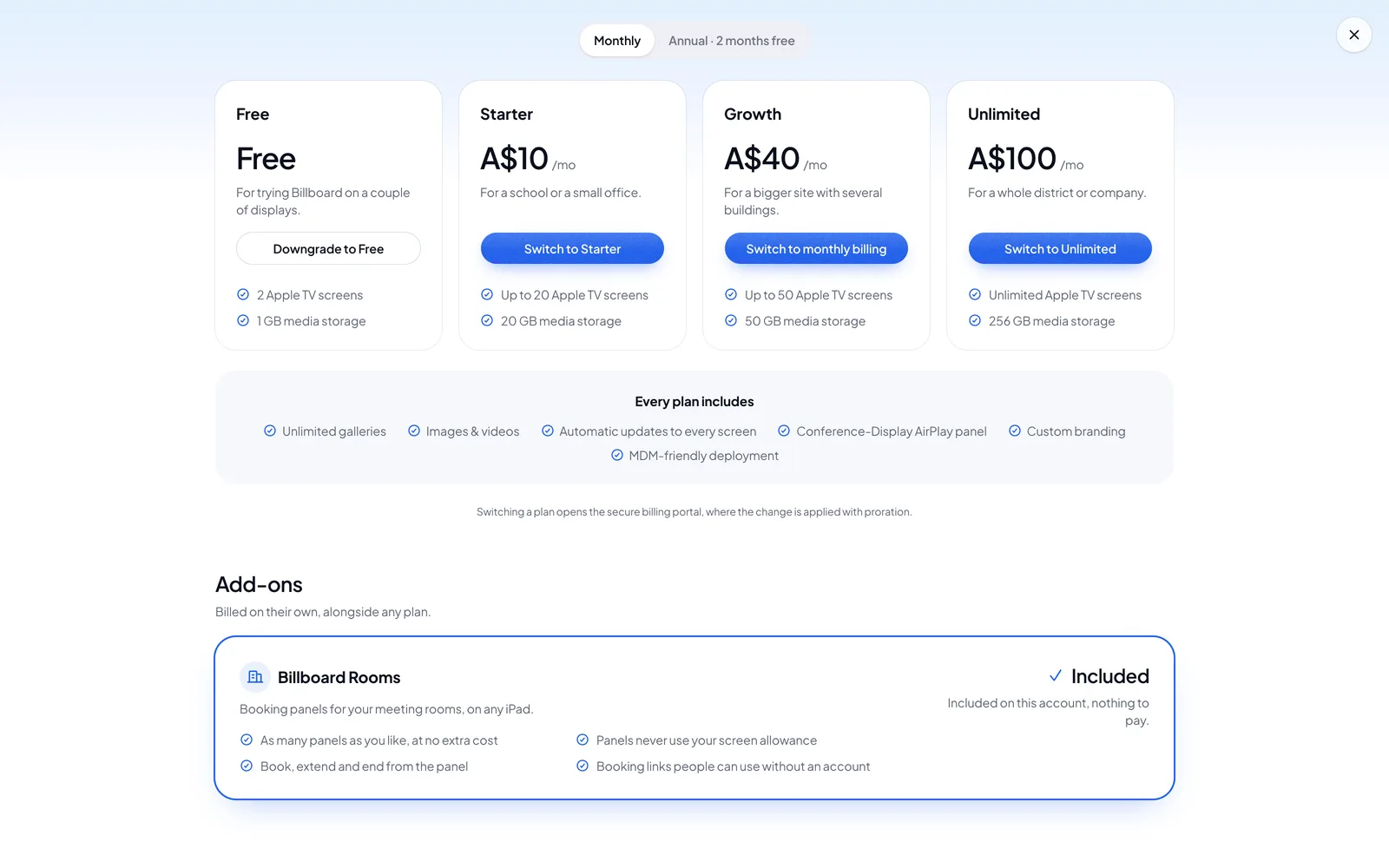
- On a paid plan it's the add-on rate, A$15 a month or A$150 a year.
- On the Free plan it's A$30 a month or A$300 a year, and the card tells you so.
- It follows the Monthly and Annual switch at the top, the same as the plans.
Select Add Billboard Rooms, check monthly or annual, and enter your card. It's billed on its own, alongside whatever plan you're on. If you pay for the Apple TV app through Apple, that doesn't cover Rooms, so Rooms is paid by card. Only an owner or admin can add it. A member sees the prices but no button.
Already have Rooms? The card says Active and links to the Rooms page, where you can cancel it. See Getting started with Rooms.
Update your card, switch plan, or cancel
In Settings → Billing, select Manage billing to open our payment processor's secure billing portal. From there you can:
- Update your card or payment method.
- Switch between monthly and annual billing.
- Change or cancel your plan.
To add a card, make one the default or remove one, you don't need the portal. Payment methods in Settings → Billing does it in place.
Cancelling
Cancelling takes effect at the end of your current billing period, so you keep your plan and all your screens until then. Fees already paid are non-refundable except where required by law.
When the plan ends, your account drops back to the Free plan (two screens). Any screens beyond those show the paused message, and your galleries stay exactly where they are.
Tip: downgrading to Free is the way to stop paying while keeping your galleries. Deleting your account is only for when you want everything gone. See Delete your account.
Prices, GST and receipts
Prices are in Australian dollars. Billboard is not currently registered for GST, so no GST is charged. A receipt is provided for every paid plan.
The Free plan needs no card and never expires, so there's no cost to sitting on it for as long as you like.
Still have a billing question? Email support@getbillboard.app and we'll help.