 Billboard
Upload and organise media
Add images and video to a gallery, reorder the running order, and remove items. iPhone (HEIC) photos and screen framing are handled for you.
Last updated 28 November 2026
A gallery's running order is the images and video your screens loop through. Here's how to add content, set the order, and take things out again.
Add media
Open a gallery from the dashboard and select Add content, then Add pictures or videos. Drop your files onto the panel, or select browse to pick them.
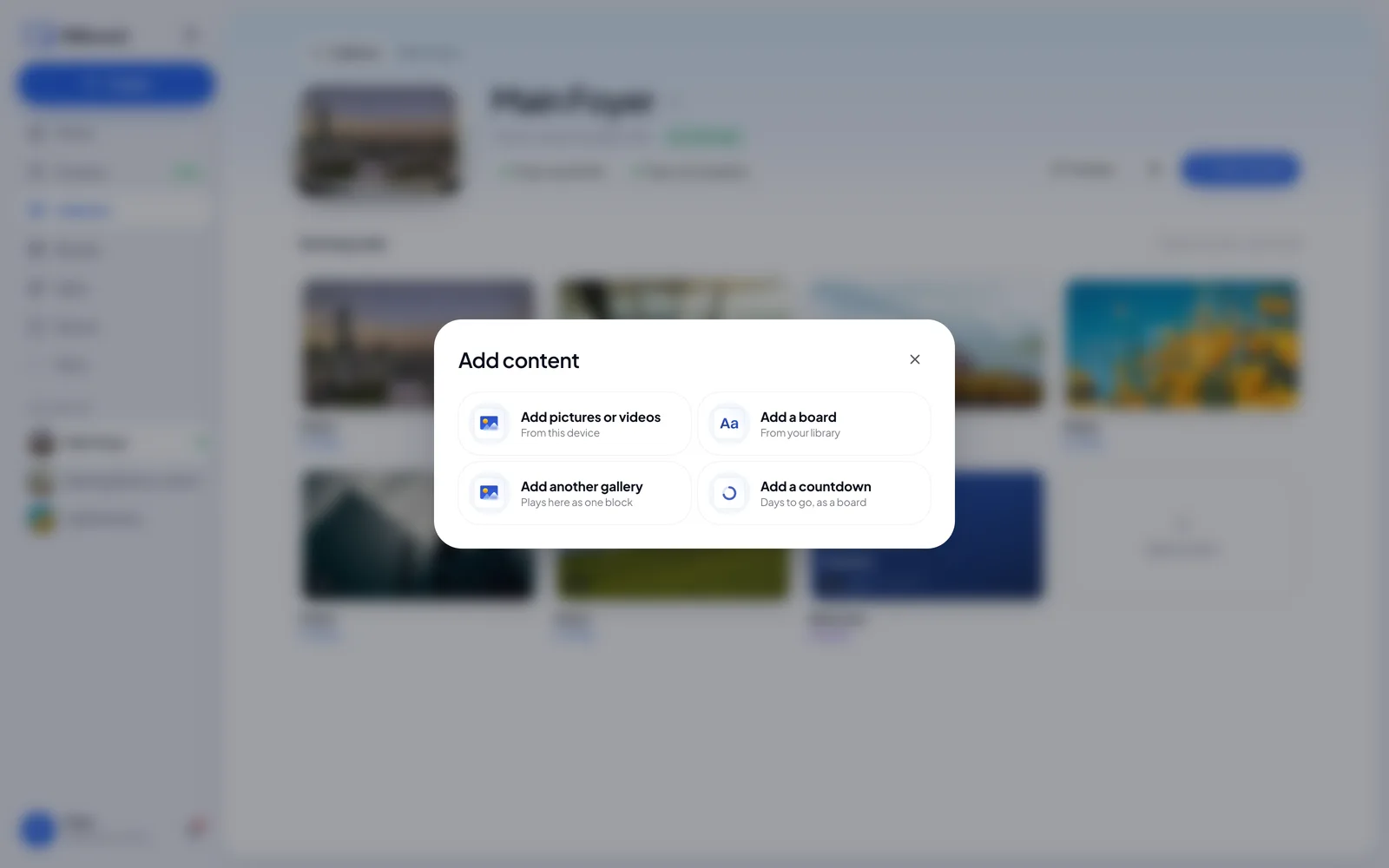
The same menu adds the other kinds of item: Add a board from your library, Search Unsplash for free photography, Add another gallery to play one gallery inside this one, and Add a countdown. Which of these you see depends on the apps you have switched on.
- Formats. Images (JPG, PNG, WEBP, HEIC) and video.
- iPhone photos. HEIC photos convert automatically, so you can upload straight from your phone.
- Screen framing. Each photo is framed to your gallery's shape, 16:9 for a normal gallery and 9:16 for a portrait one, then resized and compressed for crisp fullscreen playback. By default a photo fills the screen, which crops whatever doesn't fit the shape. Switch an item to Show all of it and nothing is cut off, with the edges extended to meet the screen rather than black bars. You can change the framing later as long as Keep original photos is on, otherwise a crop is final and reframing means uploading the photo again. See Editing and cropping photos.
- Quality warning. If something comes in below Full HD at your gallery's shape, 1920×1080 across or 1080×1920 tall, you'll get a warning, since it may look soft on a big screen.
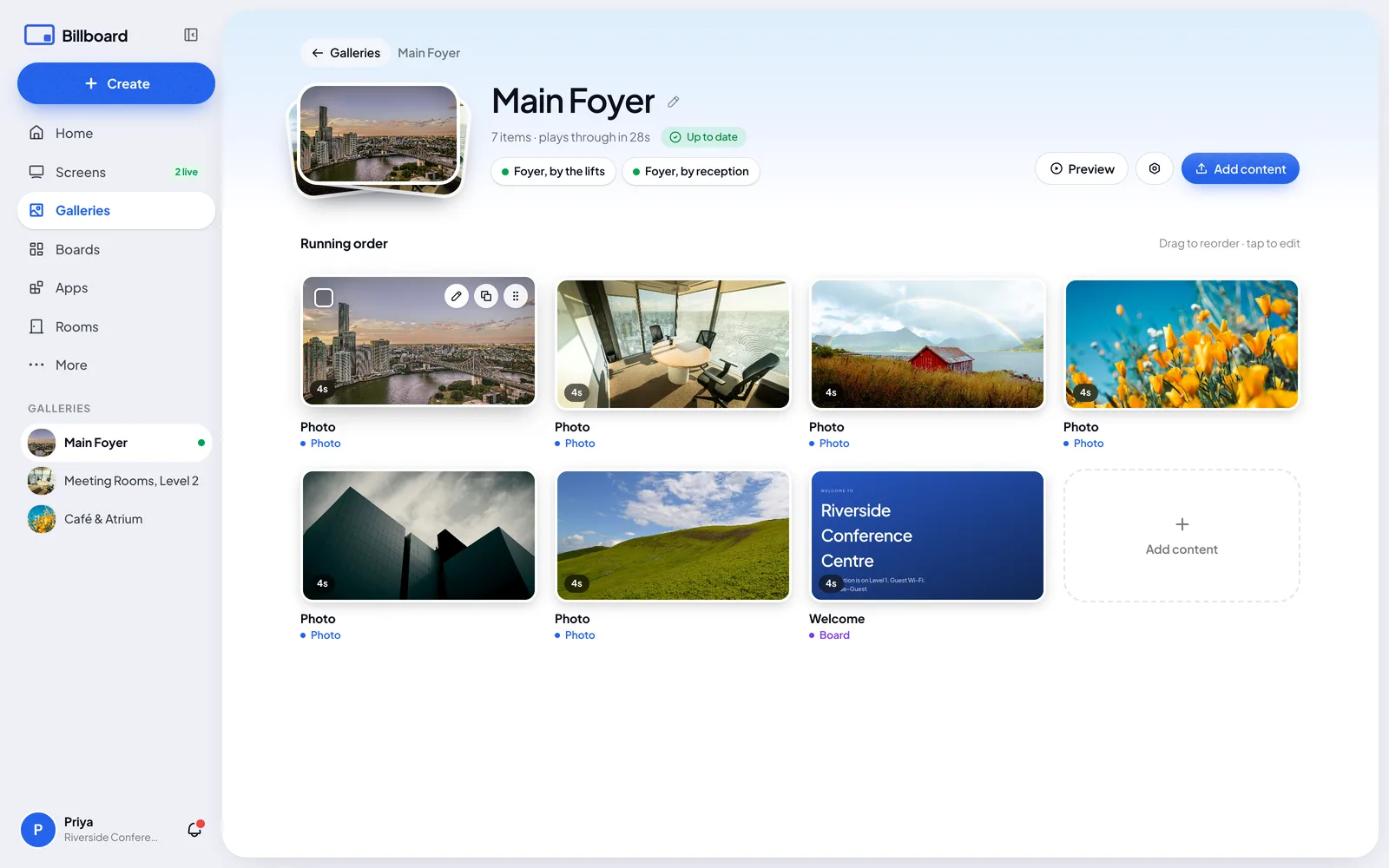
Each file shows its own progress as it uploads, and you can add several at once. Select Done when you're finished. The new media turns up as cards in the running order.
Set the order
Hover a card and drag it by the six-dot grip in its top-right corner. Screens play the cards from first to last, then loop.
Timing, framing and scheduling
Each card has its own crop, time on screen and schedule. Tap a card to open its panel. All of that lives in Editing and cropping photos.
Duplicate an item
Hover a card and select the copy button in its top corner, or tap the card and choose Duplicate in its panel. The copy sits straight after the original.
Remove items
To remove one item, tap its card and choose Remove.
To remove several at once:
- Select them. Hover a card and tick the checkbox in its top-left corner. On a touch screen the checkboxes are always there, or press and hold a card. Once you're selecting, every card shows its checkbox and tapping other cards adds them.
- A bar appears above the running order. Select Delete and confirm.
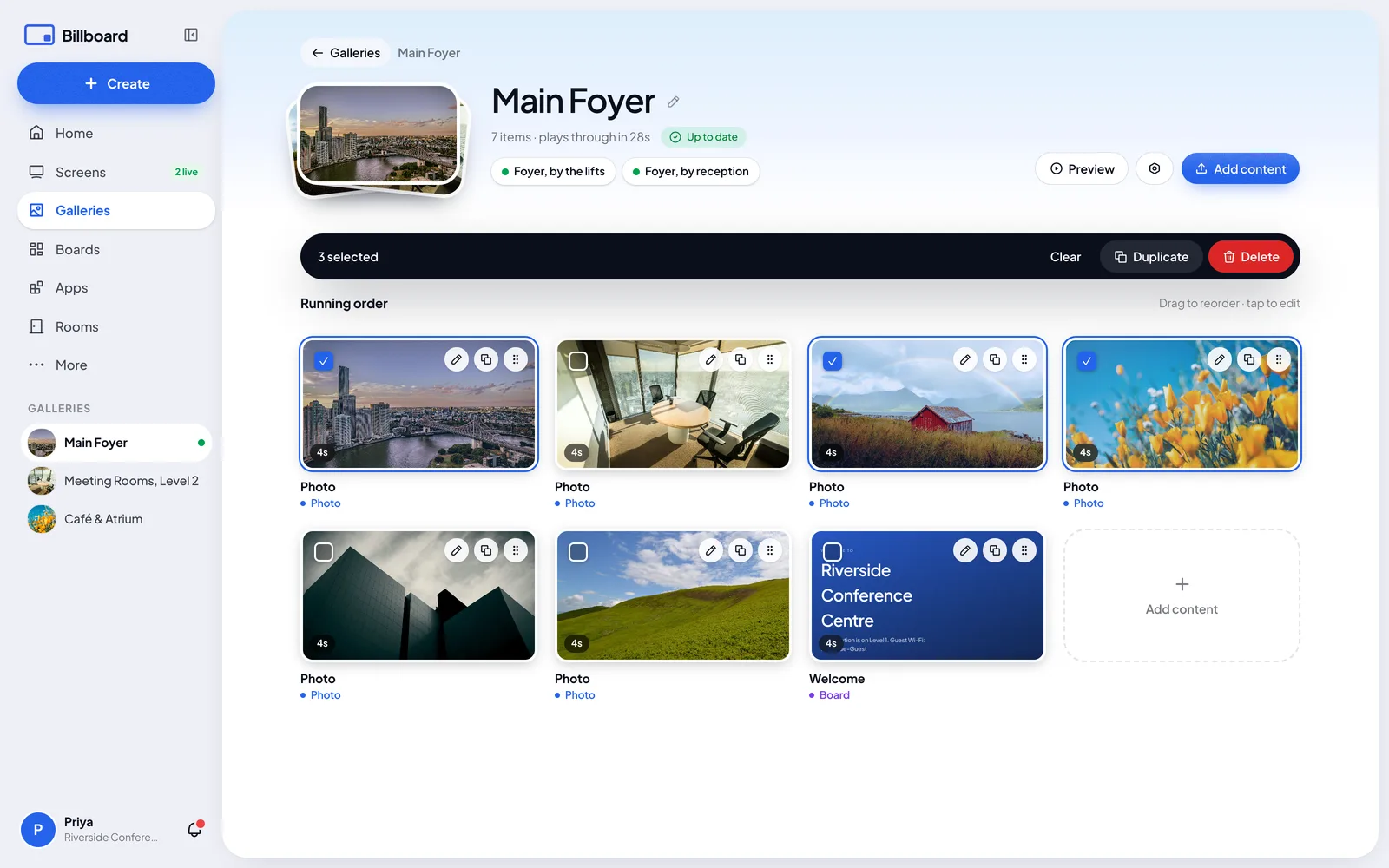
The same bar can Duplicate the selection, or Clear it.
Deleting is permanent and can't be undone. The items stop showing on your screens on their next refresh.
Tip: removing media also frees up storage. See Storage and original photos to check your usage and reclaim space.
When changes reach your screens
Changes apply on each screen's next refresh, not instantly. How often that is depends on the gallery's refresh interval, in Gallery settings → Refresh. On the Apple TV you can force an immediate refresh with Reload. See The Billboard app on Apple TV.
Need a hand? Email support@getbillboard.app.