 Billboard
Roll out Billboard with MDM
How an MDM points a whole fleet of Apple TVs at the right gallery with one setting, where to find your gallery's address, and the guide for each MDM.
Last updated 28 November 2026
With an MDM you don't connect screens one at a time. The MDM installs Billboard on every Apple TV and tells each one which gallery to play, so a screen comes up on the slideshow without anyone typing a code with a remote.
It all comes down to one setting, called dataURL.
What dataURL is
Every MDM can send an app a few settings when it installs it. Apple calls this Managed App Configuration, and most MDMs list it on the app's record as App Configuration or Managed Configuration.
Billboard reads one key from it: dataURL. Its value is your gallery's address. When the app opens and finds that key, it skips the welcome screen and the code, and goes straight to that gallery.
<dict>
    <key>dataURL</key>
    <string>https://getbillboard.app/m/ABCD2345</string>
</dict>
That's a complete configuration. Swap ABCD2345 for your gallery's code and you're done.
A few things worth knowing:
- One address per gallery. Screens that should play different things need different configurations, usually one per device group.
- The look stays in the dashboard. Media, timings, the AirPlay panel, the clock and notices all come from the gallery. You don't repeat any of it in the MDM.
- Change it any time. Point the configuration at a different gallery and the screens follow on their next check-in. You can also switch a single screen from the Playing picker in Screens.
- Every Apple TV still counts as a screen on your plan, the same as one connected by code. See What counts as an active screen.
Where to find your gallery's address
- Open the gallery and select the gear button to open Gallery settings.
- Go to Screens.
- The MDM roll-out box shows the full address. Select Copy.
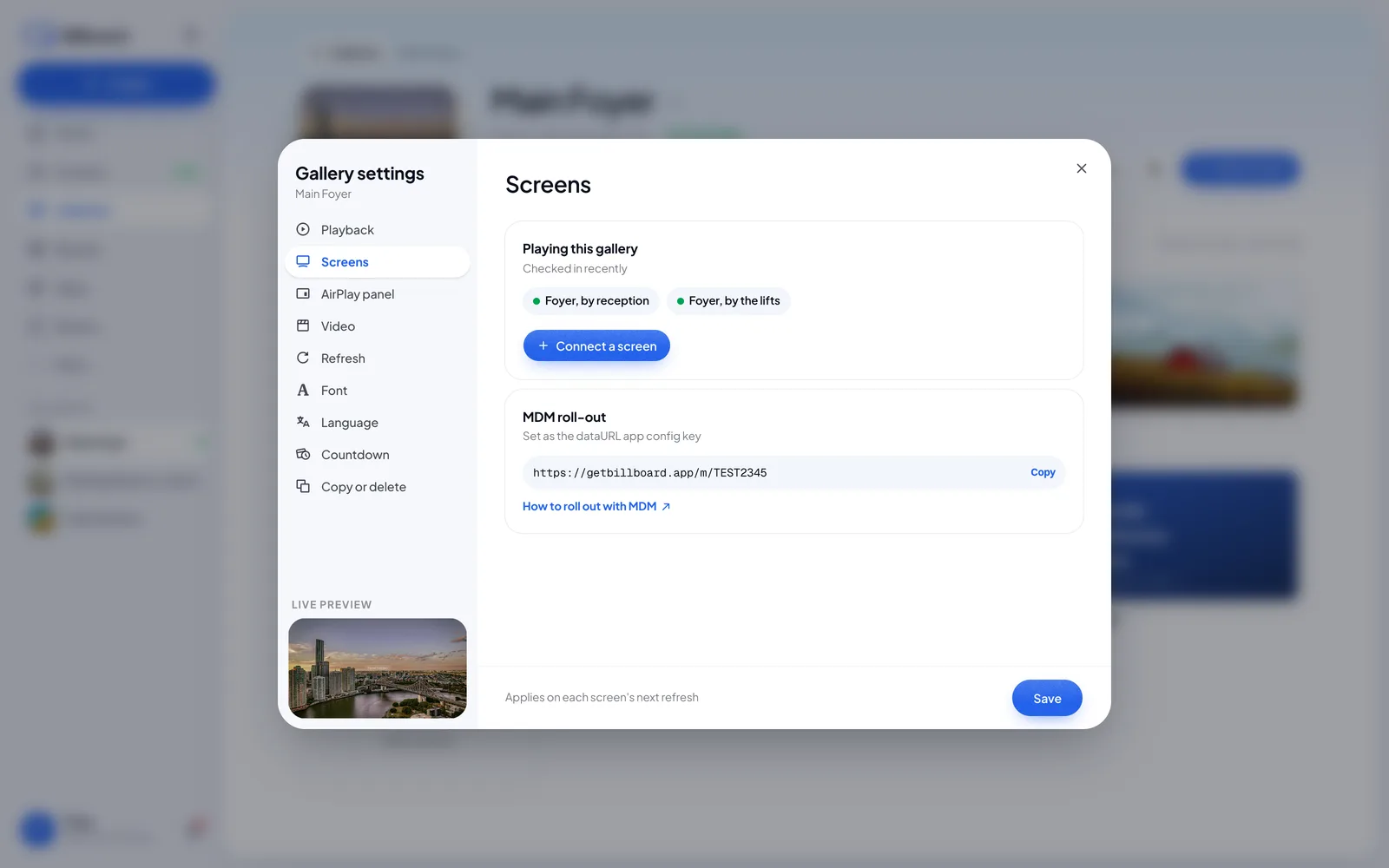
It's also under the code boxes when you select Connect a screen from a gallery and choose Apple TV.
The address is always https://getbillboard.app/m/ followed by the gallery code, letters and numbers only, with no dash.
Naming each screen
Add deviceName beside dataURL and each Apple TV shows its own name in Screens and on the AirPlay card. Most MDMs have a variable that fills in the device's own name, so one configuration names every screen. Each guide below has the right one for that MDM.
Guides for each MDM
Pick yours. Each one walks through adding the app, pasting the configuration and checking it worked.
No MDM? Apple Configurator 2 installs the app over a cable, and you connect each screen with its code once.
Before you start
- The Apple TVs need to be supervised and enrolled in your MDM.
- The app comes through Apple Business Manager (or Apple School Manager) so the MDM can install it without an Apple ID. See Apple Business Manager & School Manager.
- Locking it to Billboard is a separate step called Single App Mode. Sort out sleep, the screen saver and updates first. See Lock a screen in place.
If a screen still shows the welcome screen
The app didn't get dataURL. Check the configuration is saved on the app's record, the Apple TV is in scope, and the value is the full address with no spaces. Then push the configuration again from your MDM.