 Billboard
What counts as an active screen
How Billboard counts screens against your plan, which screens keep playing when you go over, and how to free one up.
Last updated 28 November 2026
Billboard is priced by how many screens you run at once, so it helps to know what a "screen" actually is and how it's counted. This guide covers what makes a screen active, what happens if you go over your plan, and how to free up a slot.
What is an active screen
A screen is one Apple TV, or one web browser, connected to one of your galleries. It counts as active if it has checked in with Billboard in roughly the last 10 minutes.
Counting is automatic and server-side. There's nothing to set up or configure on the Apple TV. If a screen has checked in recently, it's active. If it hasn't, it drops out of the count on its own.
Several Apple TVs connected to the same gallery each count as a separate screen. Two TVs on one gallery is two active screens, not one.
A web browser screen counts exactly like an Apple TV. Each browser that opens a gallery's screen link is its own screen, so the same link open on three PCs is three screens. A preview from the dashboard doesn't count.
How your plan sets the limit
Your plan sets how many screens can be active at once:
- Free allows 2 screens.
- Paid tiers allow more.
- Unlimited has no cap.
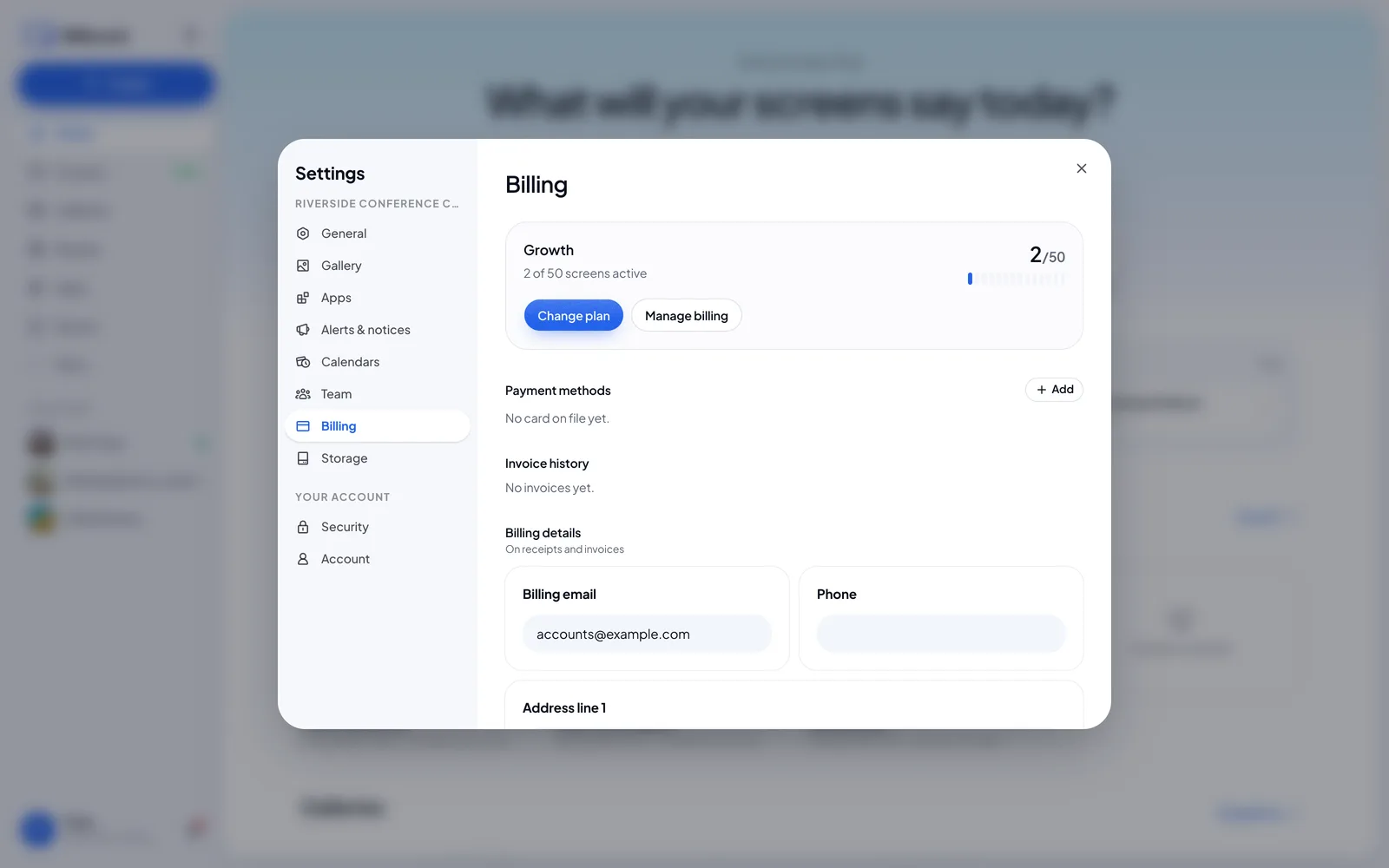
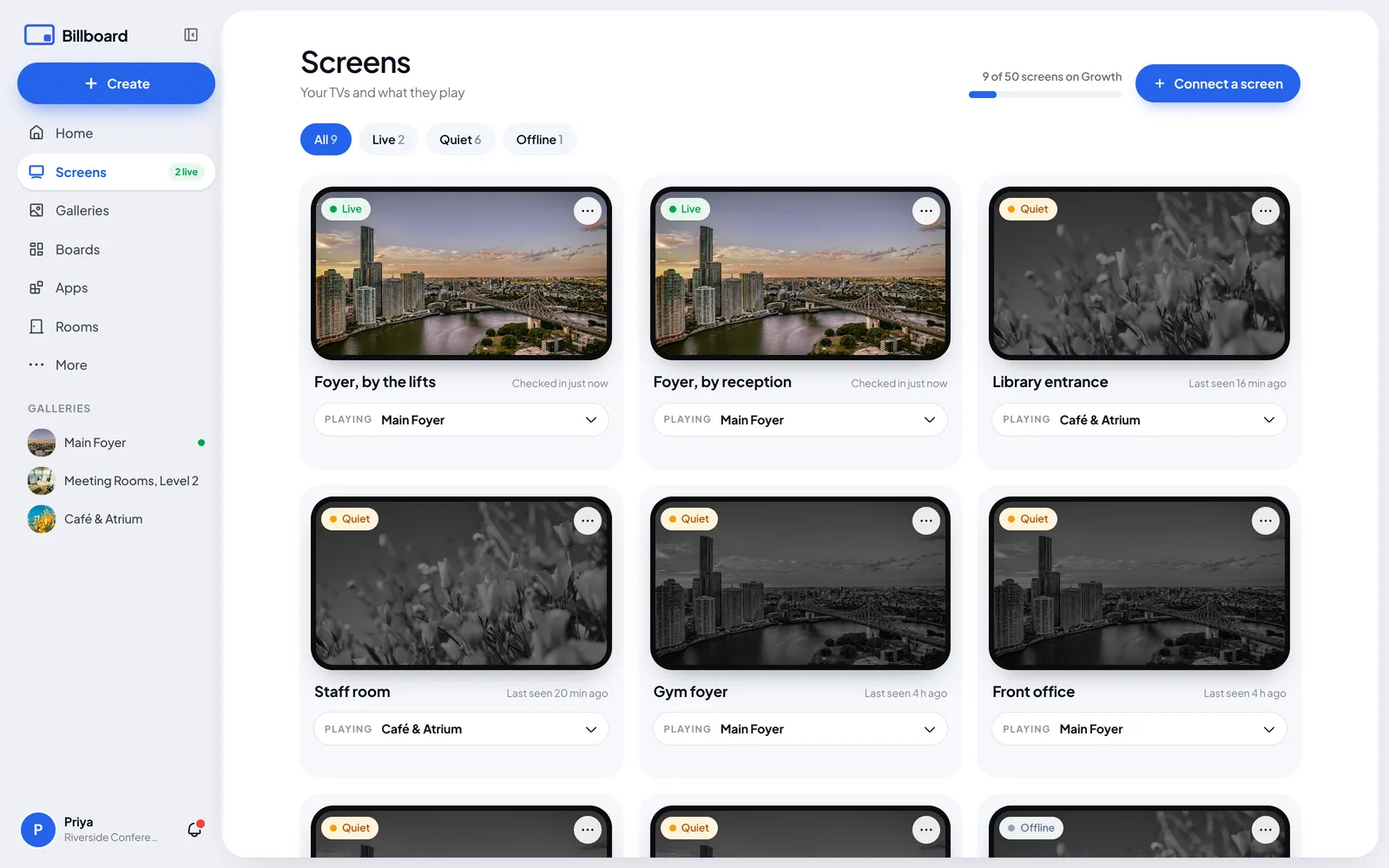
See Plans & billing for the current tiers. Your usage against the limit is shown in Settings → Billing, and at the top of the Screens page.
The Screens page in the sidebar lists every Apple TV and browser screen on the account, marked Live, Quiet (it hasn't checked in for a little while) or Offline. A screen that's paused because you're over your plan is marked Over plan.
If you go over your limit
Going over is handled gently, and automatically. Nothing gets lost:
- The earliest-connected screens keep playing your content normally.
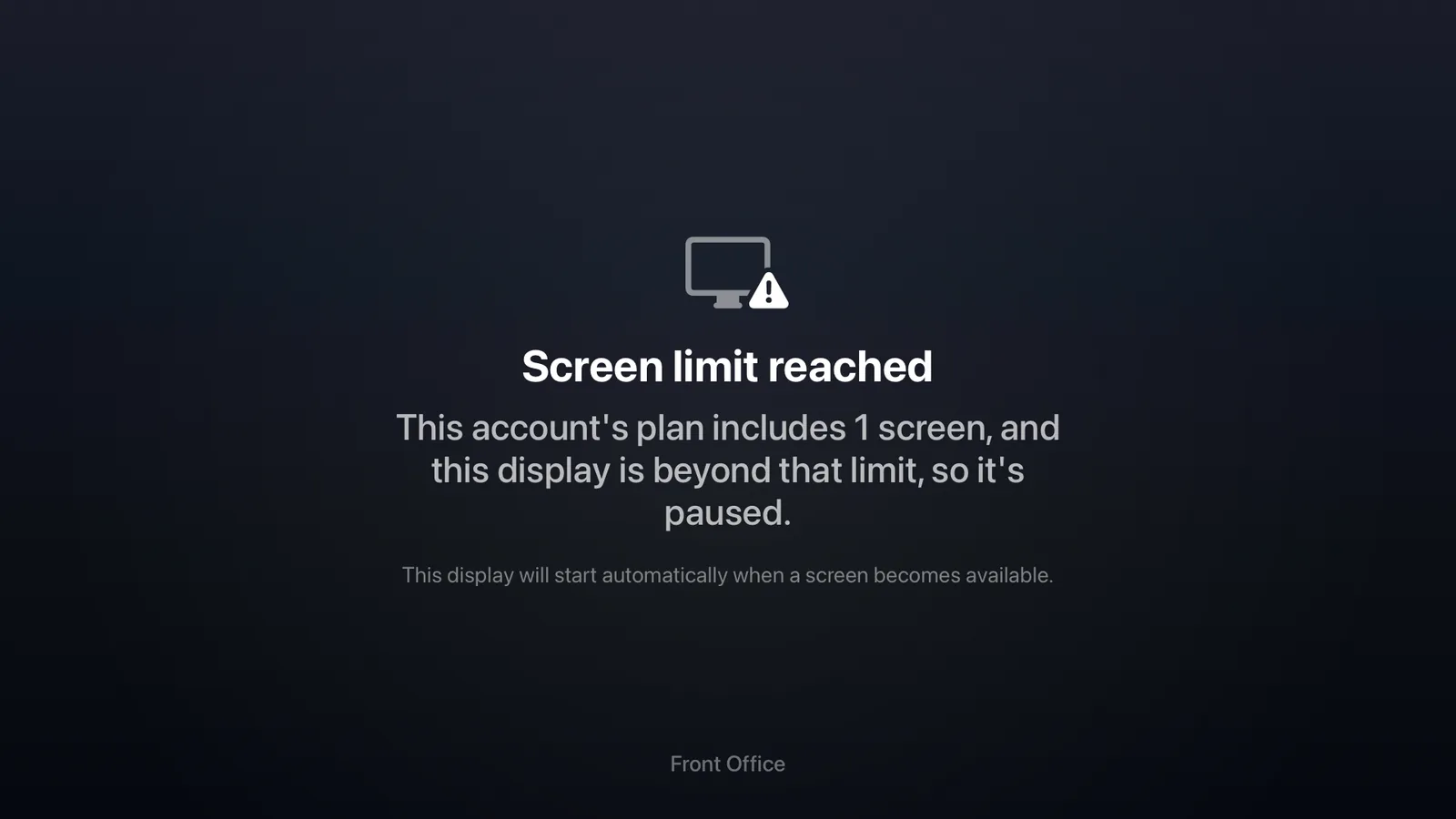
- Any screen beyond the limit shows a calm "paused" message instead of your content.
- A paused screen starts again on its own the moment a slot frees up. You never have to touch the Apple TV.
Freeing up a screen
To bring a paused screen back, free an active slot:
- Quit Billboard or unplug an Apple TV you're not using. The Screens page shows which TVs are which.
- After about 10 minutes it drops out of the active count.
- A paused screen automatically takes its place.
Or, if you need every screen live at once, move to a higher plan for more screens. See Plans & billing.
Why a screen might show "paused"
If a screen is showing the paused message, it's usually because you have more active screens than your plan allows, and this one connected after the others. Free a slot or upgrade, and it will resume on its own.
If a screen is paused when you're not over your limit, or won't come back after a slot frees up, see Troubleshooting or email support@getbillboard.app.