 Billboard
A tour of your dashboard
A quick orientation to the Billboard dashboard: the sidebar and Create menu, Home, Screens, a gallery's page, and where account settings live.
Last updated 28 November 2026
You run all of Billboard from one web dashboard at dash.getbillboard.app. Nothing to install. Here's where everything lives, so you can find your way around fast.
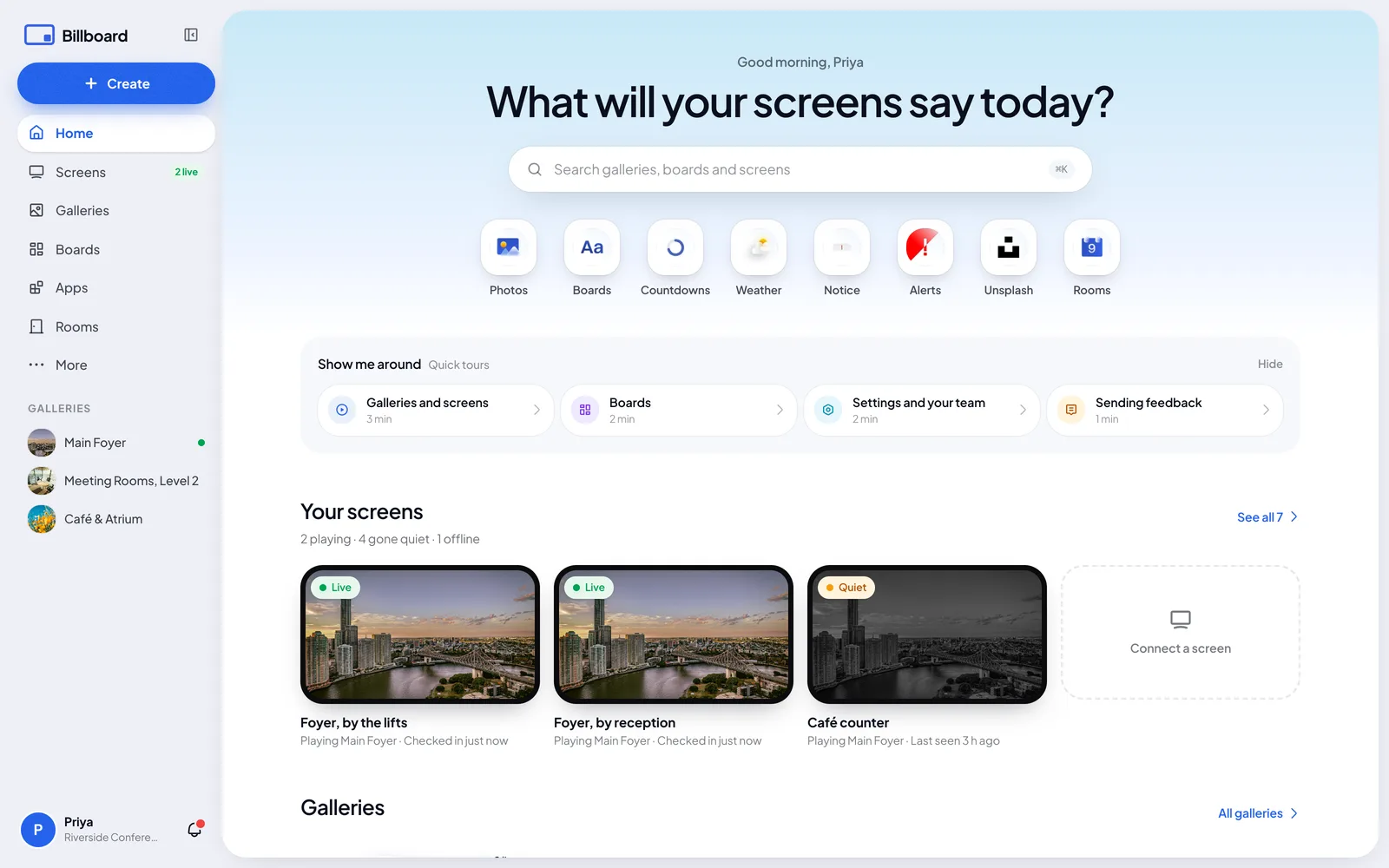
The sidebar
Down the left is your navigation:
- Create, the big blue button. It opens a menu with New gallery, New board, Countdown, Connect a screen, Send an alert and Invite your team.
- Home: where you land.
- Screens: every Apple TV on the account. The badge beside it counts how many are live right now.
- Galleries: every gallery you've made. A gallery is drawn as a little framed picture wherever it appears.
- Boards: menus, timetables and notices you type rather than upload. See Design a board.
- Apps: weather, countdowns, alerts, the notice, Unsplash and the rest, each set up once for the whole account.
- Rooms: meeting room panels and bookings. See Getting started with Rooms.
- More: Team, Plan & billing, Roadmap and Help & guides.
Under those sits a short list of your galleries, so you can jump straight to one. At the bottom are your name, which opens the account menu, and a Notifications bell.
The button at the top of the sidebar shrinks it to a slim rail of icons when you want more room. It remembers which you chose.
On a phone
The sidebar folds away. Across the top are Search, Notifications and your avatar, which opens the account menu. Along the bottom is a tab bar: Home, Screens, Create, Galleries and More. Everything else in the sidebar lives under More, along with Settings.
Home
Home answers "is everything running?" without you opening anything:
- A greeting and a search box that finds galleries, boards and screens by name. On a computer, ⌘K or Ctrl+K jumps straight to it.
- A row of app shortcuts: Photos, Boards, Countdowns, Weather, Notice, Alerts, Unsplash and Rooms.
- A Getting started checklist while you're new, ticking off making a gallery, connecting a screen and the rest as you do them. Hide it with the cross, or switch it off in Settings → General.
- Show me around, a row of four short tours: galleries and screens, boards, settings and your team, and sending feedback. Each one points at the real thing on the page and nothing changes while it runs. A half-finished tour picks up where you left it. Select Hide when you're done with them, and the row goes away by itself once you've watched all four.
- Your screens, showing each TV, what it's playing and whether it's live, gone quiet or offline.
- Galleries, with the ones on screens first.
Screens
Screens lists every Apple TV on the account as a card, marked Live, Quiet or Offline, with filters across the top to show just one kind. Each card says when the TV last checked in and has a Playing picker, so you can switch which gallery it shows without re-pairing it or touching the TV.
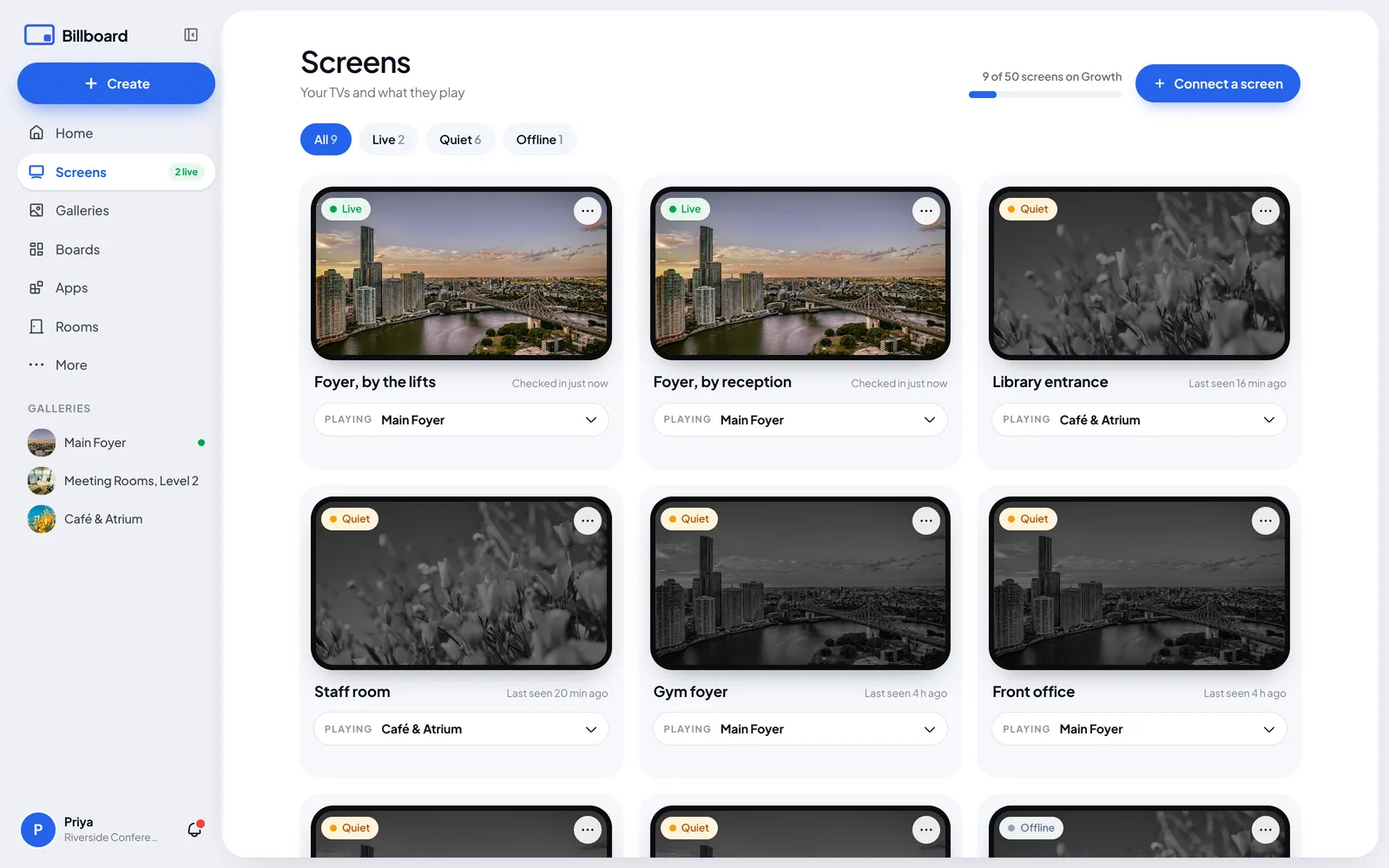
Connect a screen puts a new TV live. Type the code it's showing, give it a name, and pick what it plays. See Getting started.
Inside a gallery
Open a gallery and its content is the page. Along the top are the gallery's name (select the pencil to rename it right there), how long one pass through it takes, a countdown to when every screen will have your latest change, and a chip for each screen playing it. Then:
- Preview: watch the gallery play, the way a screen will.
- The gear opens Gallery settings: timing, the clock, the screens playing it and connecting another, the AirPlay panel, orientation, video, the refresh interval, the font, the language its screens speak, a countdown, and copying or deleting the gallery. On a computer a live preview sits at the bottom of the settings sidebar the whole time. See Customise the display.
- Add content: pictures and video, boards, Unsplash photos, another gallery, a countdown. See Upload and organise media.
Below that is the Running order, a card for each item, in the order the screen plays them. Hover a card for a checkbox to select it, a pencil to edit it, a copy button and a six-dot handle to drag it into place.
The account menu and Settings
Select your name at the bottom of the sidebar for the account menu: Your account, Settings, Plan & billing, Help and feedback and Log out. Help and feedback has two tabs, one to tell us something and one to rate Billboard.
Settings holds everything that isn't tied to one gallery:
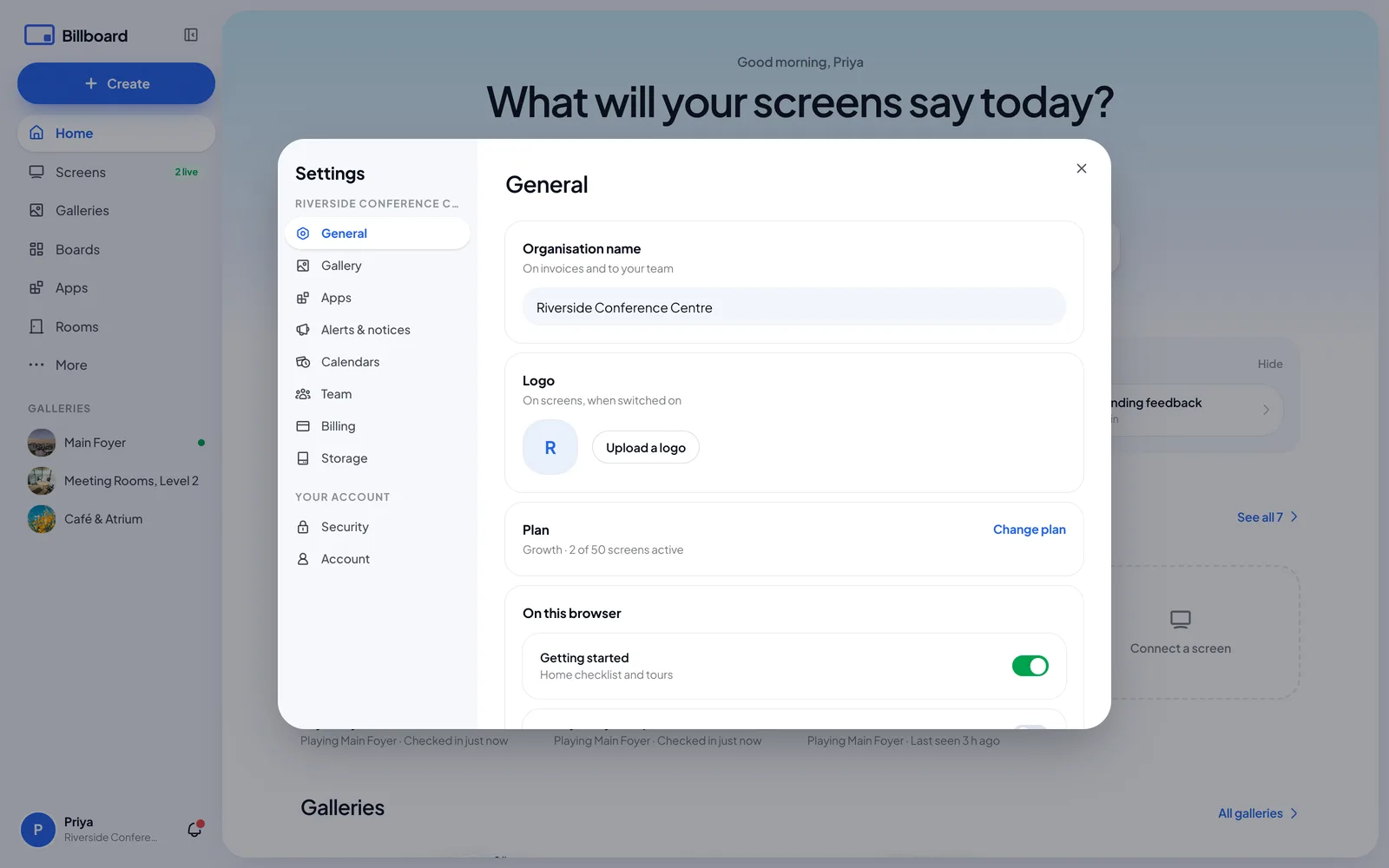
- General: your organisation's name and logo, your plan, and an On this browser card for the Getting started checklist and live chat.
- Gallery: panel size, whether your logo shows on screens, and Keep original photos.
- Apps: the same apps as the Apps page, as a list.
- Alerts & notices: the full-screen Alert and the one-line Screen notice.
- Calendars: the Google or Microsoft connection Rooms uses.
- Team: who else can get in, and to which galleries.
- Billing: your plan, card, invoices and billing details.
- Storage: how much space you're using and how to reclaim it.
- Security and Account, under Your account: your password and sessions, your name and email, and deleting your account.
Each of these has its own guide. See Dashboard settings, Storage and original photos, and Plans, billing & screen limits.
Need a hand? Email support@getbillboard.app.