 Billboard
Dashboard settings
Find your way around the Settings panel, hide the Getting started checklist, the tours or the chat bubble on this browser, and keep your name, organisation and logo current.
Last updated 28 November 2026
Your account options all live in one Settings panel. Open it from the account menu: select your name at the bottom of the sidebar (on a phone, your avatar at the top), then Settings.
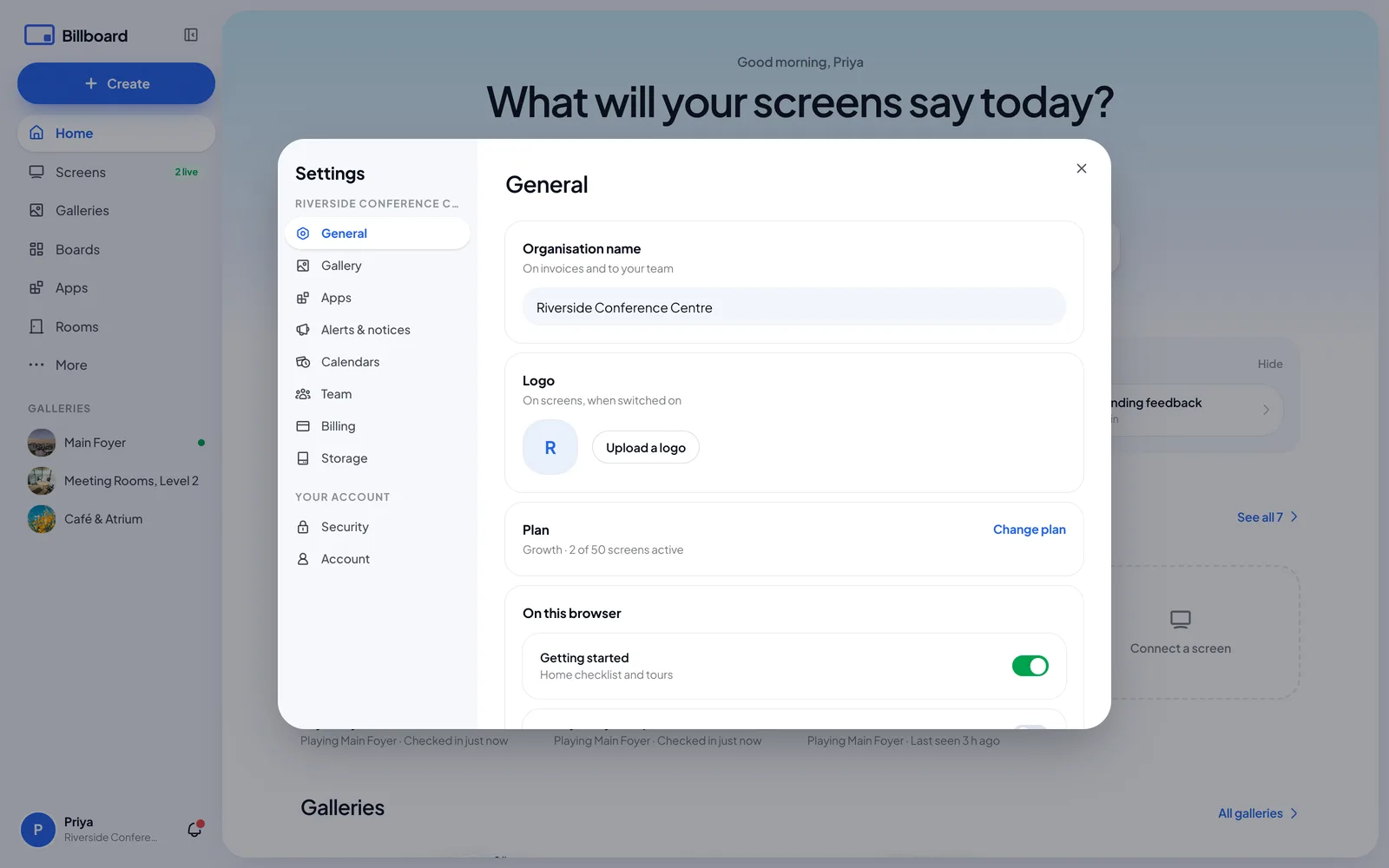
The Settings panel
Settings is split in two down the left. The first group, headed with your organisation's name, is the account everyone shares:
- General. Your organisation's name, its logo, your plan, and the On this browser switches (below).
- Gallery. Panel size (Small or Medium), Show your logo on screens, and Keep original photos. See Put your logo on your screens and Storage and original photos.
- Apps. Weather, boards, countdowns, Unsplash and the rest. The Apps page in the sidebar shows the same apps as cards.
- Alerts & notices. The full-screen Alert and the one-line Screen notice. See Raise an emergency alert and Broadcast a notice.
- Calendars. The Google or Microsoft connection your rooms use.
- Team. Who else can get in, and what they can edit.
- Billing. Plan, payment method, invoices and billing details. See Plans, billing & screen limits.
- Storage. Usage and reclaiming space. See Storage and original photos.
The second group, Your account, is just you:
- Security. Your password, how you sign in, and the browsers you're signed in on.
- Account. Your name and email, and deleting the account.
If you were invited to someone else's account as a member, you'll only see Security and Account.
On this browser
Under General, the On this browser card has two switches:
- Getting started. The set-up checklist on Home, and the Show me around tours just below it. Turn it off once you know your way around. The Hide link on the tours row does the same thing.
- Live chat. The chat bubble in the corner. Help and feedback in the account menu is still a way to reach us, and it's where you can rate Billboard too.
These only change the dashboard in the browser you're using. Your screens and your team aren't affected.
Your name, organisation and logo
- Organisation name is under General. It's on your invoices, and it's what your team sees when they switch accounts.
- Logo is under General too. Select Upload a logo. It shows beside your name in the dashboard, and on your screens once you switch it on. See Put your logo on your screens.
- Name and Email are under Account. Select either to change it. A new email is confirmed by a message to both addresses.
Sign-in and passwords are covered in Signing in and your account.
Need a hand? Email support@getbillboard.app.