 Billboard
Customise the display
Set how long items show, add an on-screen clock, pick the screen language, and tailor the AirPlay panel: its text, the network name, its colour and how it moves.
Last updated 28 November 2026
Every gallery has its own look. How fast the slideshow moves, whether there's a clock, how the AirPlay panel sits over your content. This guide runs through the lot.
Open a gallery and select the gear button beside Preview to open Gallery settings. Everything below lives there, in sections down the left. To rename the gallery, select the pencil beside its name and type straight into the title.
On a computer, a Live preview sits at the bottom of that left-hand list. It stays in view whichever section you're in and changes as you do, so you can watch the AirPlay panel take on a new colour or opacity before you save. On a phone the preview sits under the AirPlay panel settings instead.
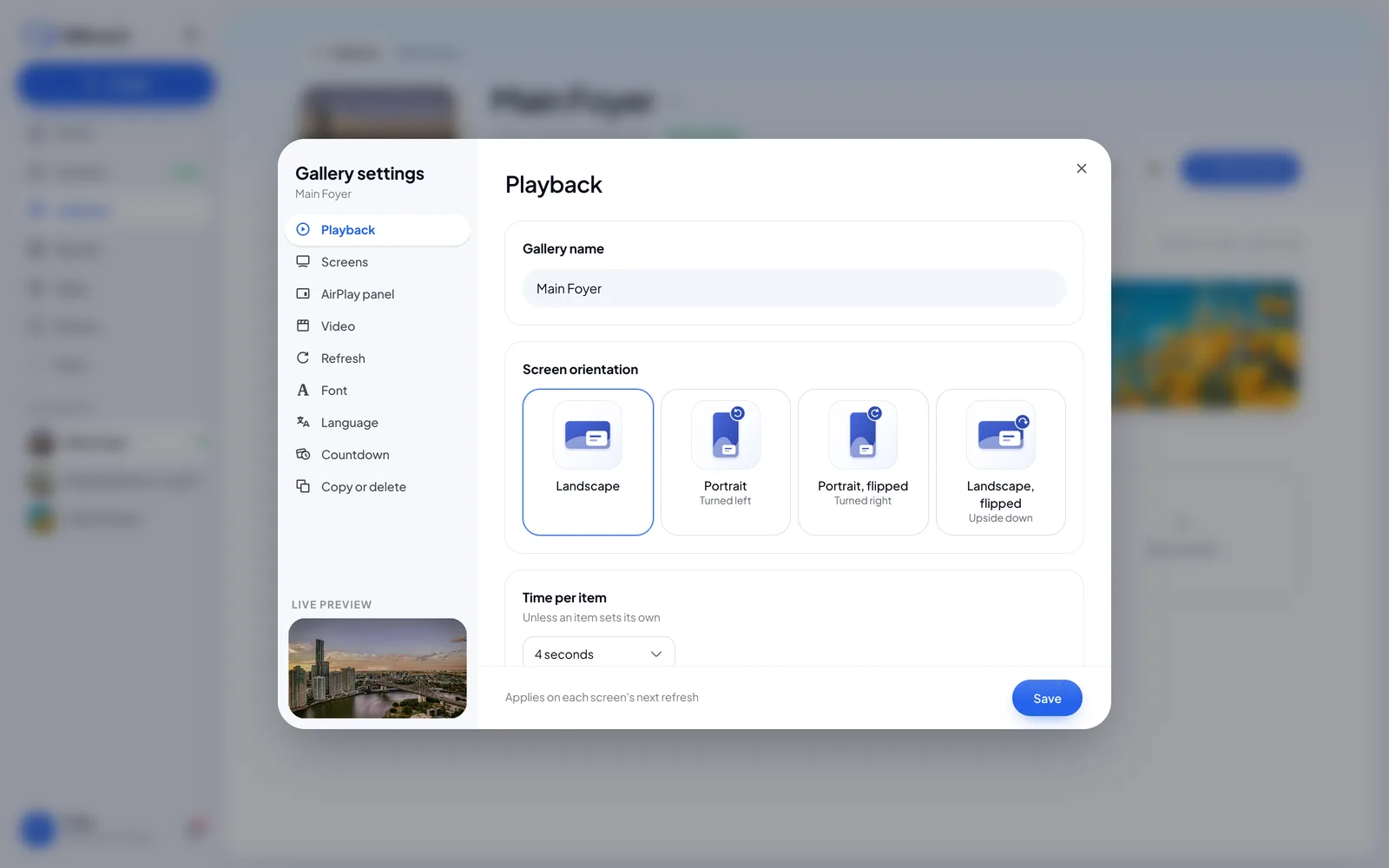
Playback
- Gallery name: rename the gallery.
- Screen orientation: for a screen mounted on its side or upside down. See Portrait and screen orientation.
- Time per item: how long each item stays on screen, unless an item has its own time set. See Editing and cropping photos for per-item timing.
- Show a digital clock: turn this on to display the Apple TV's local time in a corner of the screen.
Screens
Screens lists the screens playing this gallery right now. Connect a screen adds another one with this gallery already chosen. See Getting started.
Under MDM roll-out is the gallery's own address, with a Copy button. Set it as the dataURL key in your MDM's app configuration and every Apple TV it reaches connects itself. See the Jamf Pro or Microsoft Intune guides.
Customise the AirPlay panel
The AirPlay panel is the floating Conference-Display card on the TV. Its section is AirPlay panel, and the live preview shows it over one of your own photos.
- Description text: the paragraph shown on the panel.
- Network name: shown under "Network Configuration" so people know which network to join to AirPlay. Leave it blank to hide that line.
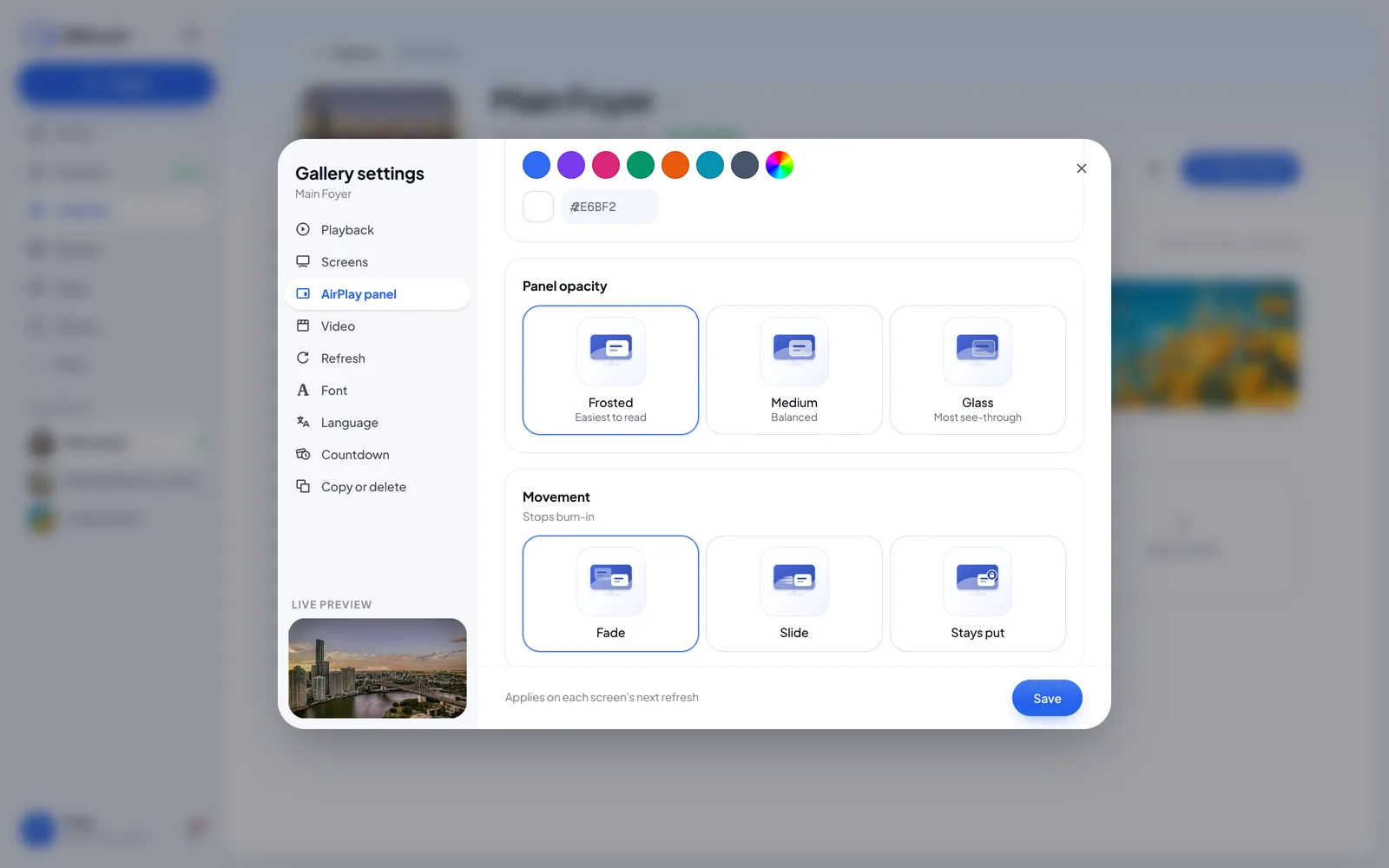
- Panel colour: pick a tint from the colour swatches.
- Panel opacity: three picture cards. Frosted is the easiest to read, Medium sits in between, and Glass is the most see-through.
- Movement: Fade, Slide or Stays put. The first two move the panel around the screen now and then so it doesn't burn in. Stays put keeps it in one place. Set how often it moves under Seconds between moves.
- Hide the panel entirely, Hide the panel during videos, and Hide the panel during boards.
Tip: we say "Network" rather than "Wi-Fi" because an Apple TV might be on Ethernet. Use the name of whichever network people should actually join.
However you style it, the panel stays a one-tap AirPlay target.
The panel's size isn't here. It's in account Settings → Gallery, because it applies to every gallery at once. Choose Small or Medium.
Font
Pick a font for the gallery's boards, captions and weather card under Font. The clock, the notice and the AirPlay panel keep Billboard's own font, so every screen still looks like one product.
Language
Language decides which language the screen's own words are in: the weather, the countdown, listing labels and the like. Leave it on Each screen's own and every screen follows its device's language, or pick one of eleven to fix it for this gallery. Anything you typed yourself stays as you wrote it. See Screen languages.
Video, refresh and countdown
- Video: Play videos in full and Play videos with audio.
- Refresh: how often each TV checks for changes, from 3 min to Weekly. See Managing galleries.
- Countdown: a small chip beside the clock counting down to a date. Pick one of the countdowns you've made under Apps → Countdowns.
Save your changes
Select Save at the bottom. Changes land on each screen's next refresh, not the moment you save.
Want the same message on every screen at once instead of per gallery? See Broadcast a notice. Anything else, email support@getbillboard.app.