 Billboard
Managing galleries
Add and order content, tune the AirPlay panel, add a clock or a notice, control how often screens refresh, and copy or delete a gallery.
Last updated 28 November 2026
A gallery holds your media and every setting that decides how it looks on screen. This guide covers the day-to-day stuff: adding content and customising the display.
Adding and ordering media
Open a gallery from Galleries in the sidebar, or from the list of galleries under it. Its content is the page: the Running order, a card for each item in the order it plays, shaped like your screens, so a portrait gallery shows tall cards.
- Add images and video with Add content, then Add pictures or videos. Drop files in or browse. Photos (including iPhone HEIC) are cropped to your gallery's shape, resized and compressed for fullscreen playback, and anything below Full HD gets a warning. See Upload and organise media.
- Reorder by dragging a card by its six-dot handle. The screen plays them left to right, top to bottom, and then loops.
- Crop, timing and scheduling: tap a card to open its panel, where you can reframe the photo, set how long it shows, or schedule when it appears. See Editing and cropping photos.
- Delete: tick one or more cards, then Delete in the bar that appears. Or tap a card and choose Remove. The screens pick up the change on their next refresh.
The AirPlay panel
The drifting card that shows people how to AirPlay is yours to tune, per gallery, in Gallery settings → AirPlay panel (the gear button on the gallery's page).
- Description text: the wording on the card.
- Network name: show the exact network name to join, so casting is a two-step, numbered process.
- Panel colour: apply your brand colour to the panel.
- Panel opacity: three picture cards, so you can see the difference before you pick.
- Frosted: the easiest to read. Best over busy images.
- Medium: balanced.
- Glass: the most see-through, lets the most of your image through.
- Movement: Fade or Slide move the panel around the screen to prevent burn-in. Stays put keeps it still.
- Visibility: hide the panel entirely, or only while a video or a board is playing.
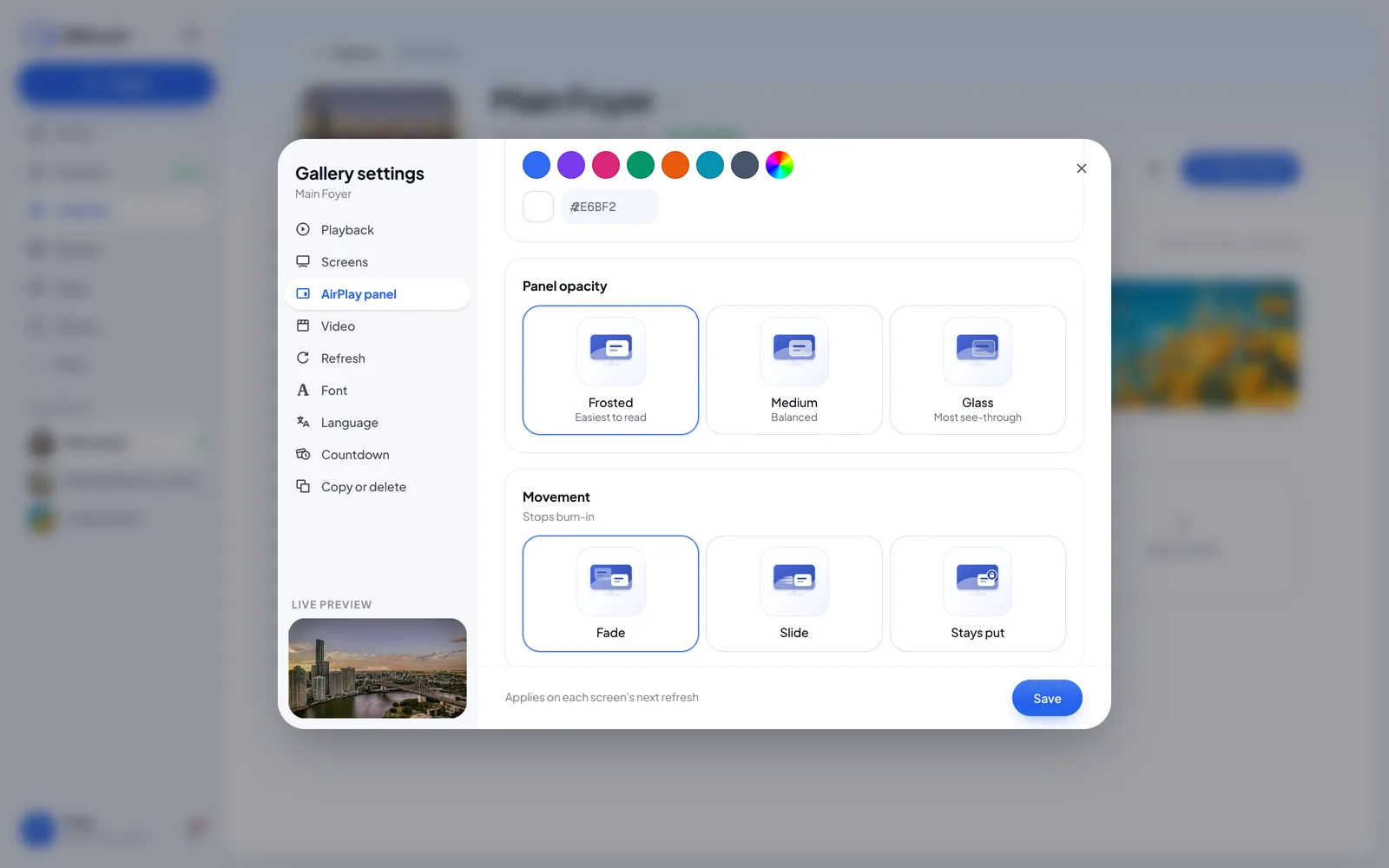
Watch the Live preview at the bottom of the settings sidebar to see how the panel reads over one of your own images before you save. On a phone it sits under the AirPlay panel settings.
Clock and notices
- On-screen clock: show the time in the corner, read from the Apple TV's own clock so it's always right. Turn on Show a digital clock in Gallery settings → Playback.
- Notice: broadcast a short message across the top of every screen on the account. Good for open evenings, closures, reminders. It's account-wide, so it lives on the Apps page (and in Settings → Alerts & notices) rather than in a gallery. See Broadcast a notice.
How often screens refresh
Each gallery has a refresh interval, set in Gallery settings → Refresh, anywhere from every 3 minutes up to weekly. Screens check in on that schedule and pull down whatever you've changed, so you rarely need to touch the Apple TV. Shorter means changes show up sooner. Longer means less network traffic across a big fleet.
Copy or delete a gallery
Both live in Gallery settings → Copy or delete:
- Make a copy duplicates everything in the gallery, in the same order, under a new name. Screens stay on the original.
- Delete this gallery removes it and its photos and video. Boards stay in your library. You type
DELETEto confirm.
Monitoring your screens
The chips under a gallery's name show which screens are playing it right now. For the whole account, Screens in the sidebar lists every Apple TV, marked Live, Quiet or Offline. A screen counts as live if it has checked in within the last ten minutes.
Screen limits
Your plan sets how many screens can be live across your whole account at once. If more Apple TVs connect than your plan allows, the earliest-connected screens keep playing normally and any extra screens show a full-screen upgrade message instead of your content. See Plans, billing & screen limits for how this works, and raise the limit any time from Plan & billing.
Tips
- Make a gallery per space so each screen shows exactly the right content, and each has its own code.
- Point several Apple TVs at the same gallery when you want identical content in many places. The Playing picker on each screen's card in Screens switches it in a moment.
- Keep images at Full HD or above (1920×1080 or larger) for the sharpest result.