 Billboard
Put your logo on your screens
Show your brand mark in the corner of every slide. Upload it once on your account, then switch it on for your screens.
Last updated 28 November 2026
Billboard can hold your logo in the top corner of the screen, steady as the photos change behind it. It's your mark, shown the way you'd show it, not dropped into a box of ours.
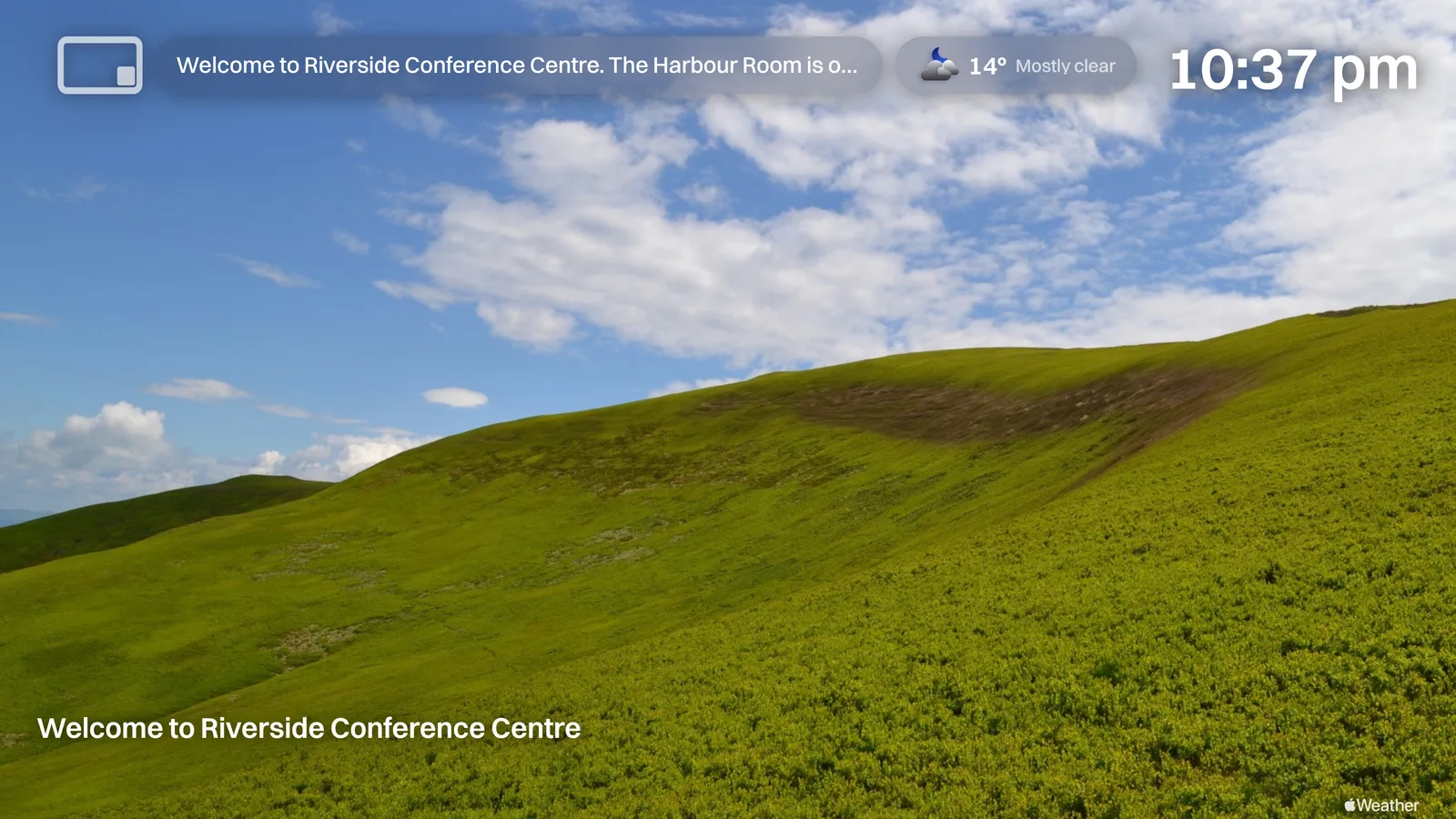
Add your logo
- Open Settings from the account menu (your name, bottom of the sidebar). It opens on General.
- Under Logo, choose Upload a logo and pick your file. It needs to be an image under 5 MB.
A PNG with a transparent background looks best, so the mark sits cleanly over any photo. The same image doubles as your account picture in the dashboard. To swap it later, choose Change logo.
Turn it on
The logo is off by default, so a screen only carries it when you say so.
- Open Settings in your dashboard and go to Gallery.
- Turn on Show your logo on screens.
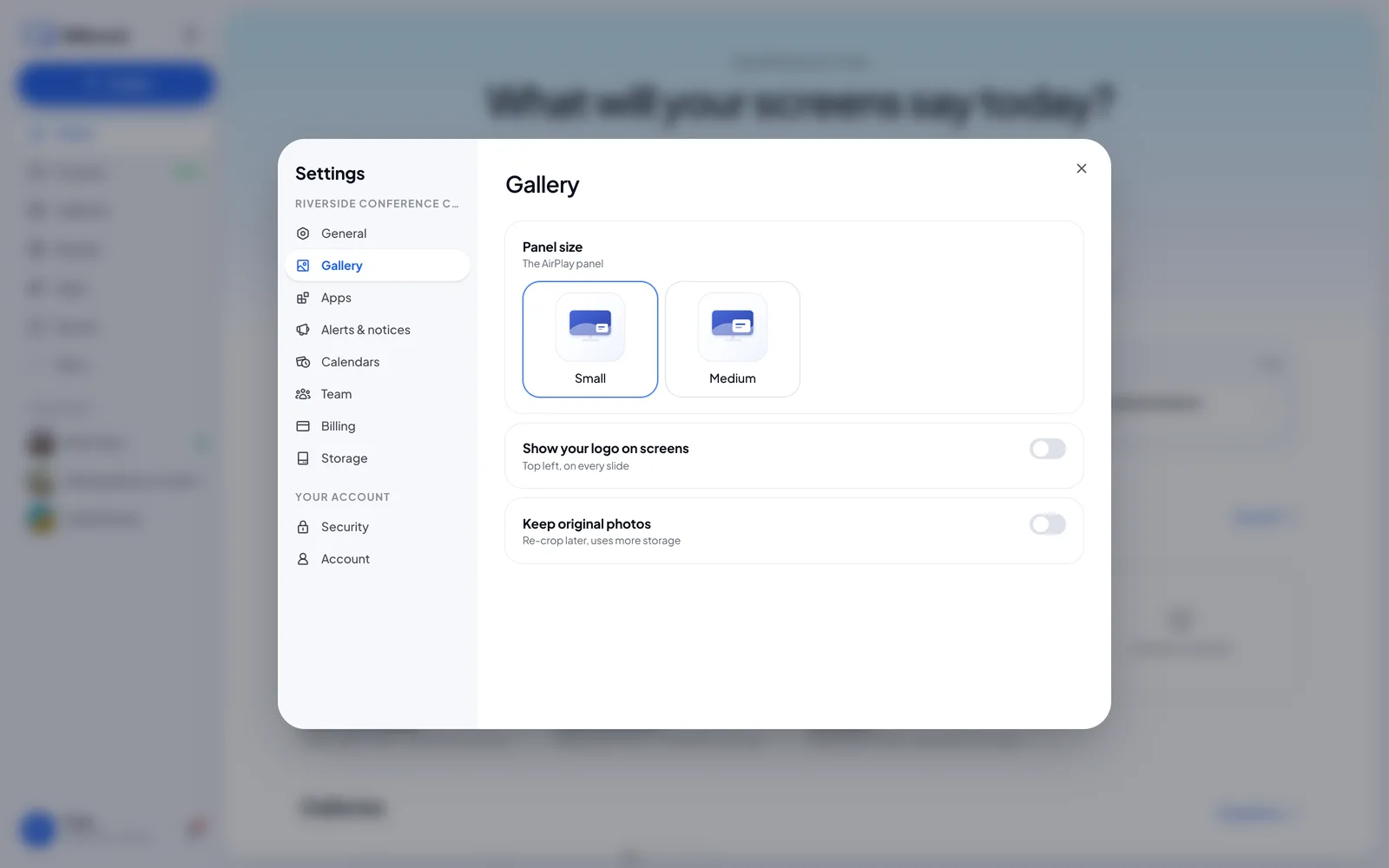
You'll need a logo uploaded first for the toggle to do anything.
Good to know
- One switch, every screen. The logo is an account setting rather than a per-gallery one, so turning it on puts your mark on all of your screens at once.
- It holds steady. The logo doesn't fade in and out with each photo. It stays put in the corner, so it reads as a fixed brand mark rather than a slide.
- Change it any time. Upload a new logo under Settings → General and every screen carrying it updates on its next refresh.
Was this page helpful?
Related articles
Customise the displaySet how long items show, add an on-screen clock, pick the screen language, and tailor the AirPlay panel: its text, the network name, its colour and how it moves.Show the weather on your screensAdd live local weather to your galleries, as a small chip beside the clock or a full-screen slide, from one location you set once.
Didn't find what you needed? support@getbillboard.app