 Billboard
Add a caption to a photo
Give a photo a short line of text that fades in as it comes up on screen, then fades away. Set per photo, in its settings.
Last updated 28 November 2026
A caption is a short line of text tied to one photo. It fades in at the bottom of the screen as that photo comes up, holds for a few seconds, then fades away. It's for naming the moment, not for a wall of text.
Add a caption
- Open a gallery and tap the photo you want to caption. Its panel opens on the right.
- Type into the Caption field, for example "Year 12 formal" or "Reception, Level 2".
- Select Save.
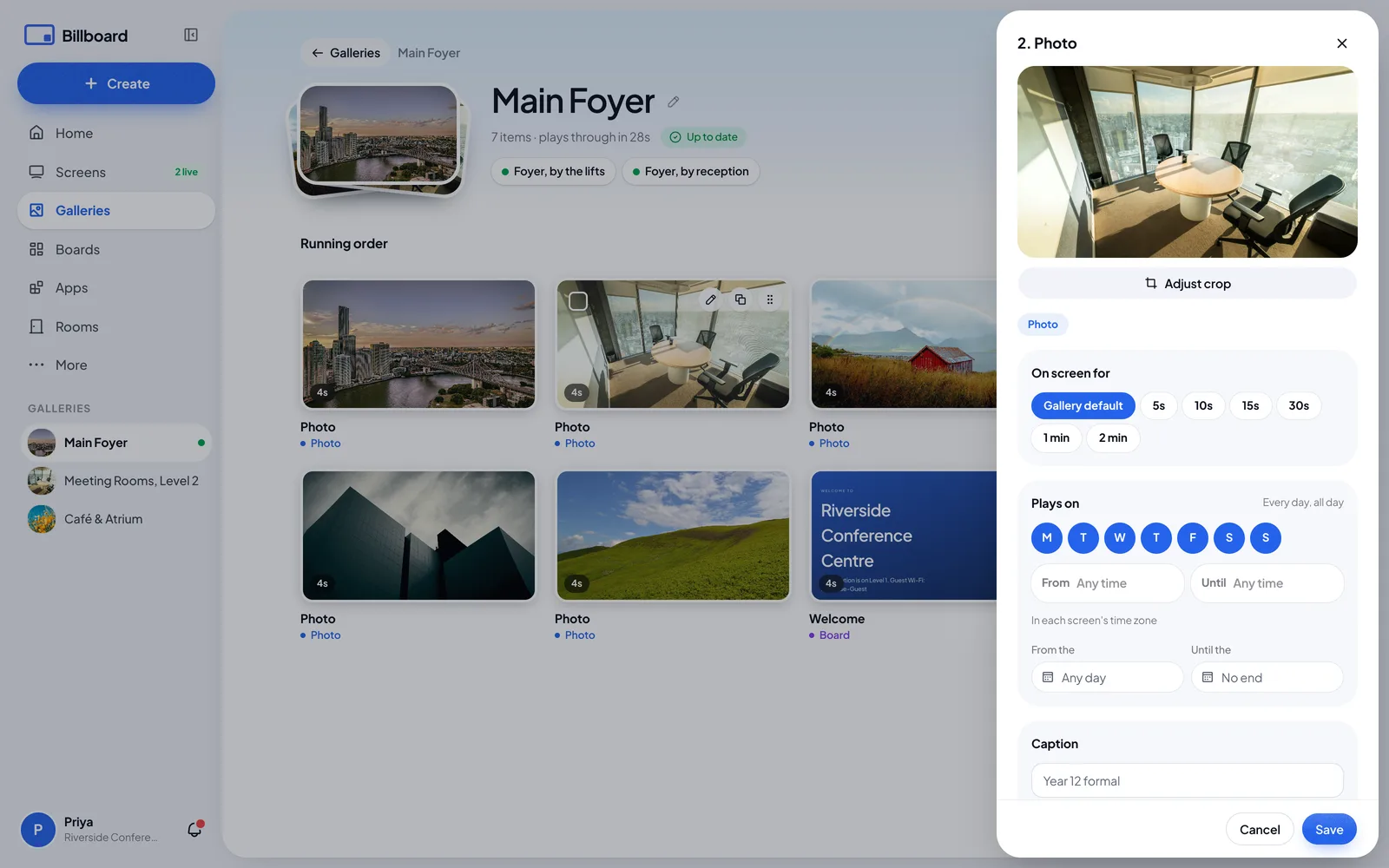
Photos added from Unsplash already carry the photographer's credit as their caption, and that one can't be changed.
How it behaves on screen
- It appears for a few seconds as the photo comes up, then fades out, so it doesn't sit over the image the whole time.
- Only photos you've captioned show one. Leave the rest blank and they play clean.
- Keep it short. A few words read from across a room. A sentence does not.
Good to know
- Per photo, not per gallery. Each photo carries its own caption, or none.
- It's for the moment, not the whole slide. If you want text on screen the entire time, a caption isn't the tool. A notice sits across every screen and stays until you switch it off.
Was this page helpful?
Related articles
Editing and cropping photosEvery photo is framed for your screens. Re-crop from the original, add a caption, and set how long a photo shows or when it appears.Managing galleriesAdd and order content, tune the AirPlay panel, add a clock or a notice, control how often screens refresh, and copy or delete a gallery.
Didn't find what you needed? support@getbillboard.app